Publish and Run with Krkn Operator
Categories:
Starting point: the scenario image passes its local tests. Result: the operator discovers the image, renders its two inputs, and runs it against a target you have already registered.
The management cluster hosts the registry, operator, and scenario Pods. The target’s kubeconfig is mounted into each scenario Pod. You do not need to place the private registry on the target or configure the target’s runtime to pull this scenario image.
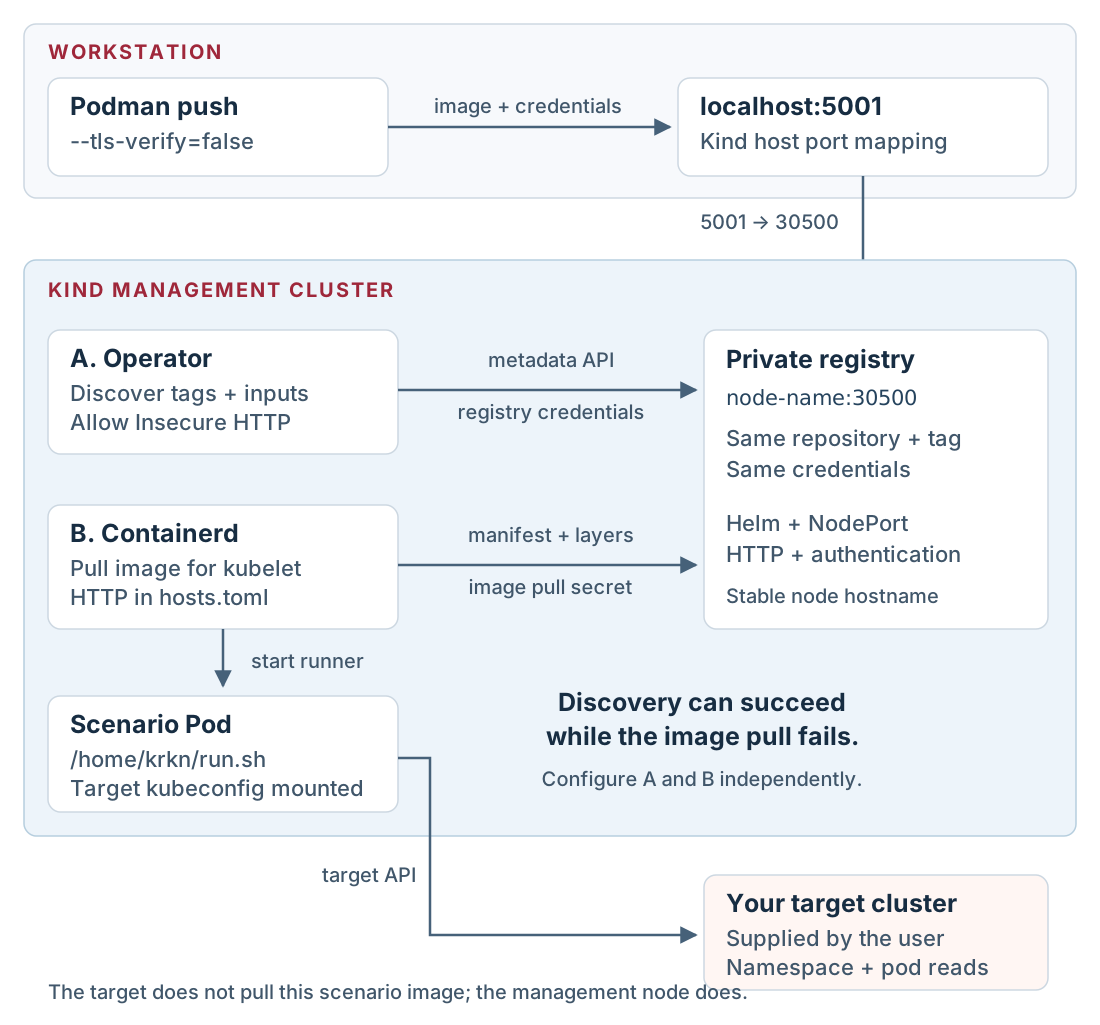
One registry, two client configurations. Select the diagram to view it at full size.
1. Create the management cluster
Use a dedicated name so an existing Kind cluster is preserved:
export KIND_EXPERIMENTAL_PROVIDER=podman
export KRKN_MGMT_CLUSTER=krkn-dev-demo-mgmt
export KRKN_MGMT_CONTEXT="kind-$KRKN_MGMT_CLUSTER"
export KRKN_OPERATOR_NAMESPACE=krkn-operator-system

kind create cluster --name "$KRKN_MGMT_CLUSTER" \
  --config "$KRKN_DEV_PLUGIN_DIR/kind-config.yml"
kubectl --context "$KRKN_MGMT_CONTEXT" get nodes
Tip: keep management operations on the intended cluster
kind create cluster --name creates the node container and a kubeconfig context
named kind-<name>. Explicit --context and Helm --kube-context arguments
keep later commands on that management cluster even if your current context
changes. --config reads the port mapping and containerd settings at creation
time; it is not a configuration file watched by the running cluster.The repository’s kind-config.yml contains:
kind: Cluster
apiVersion: kind.x-k8s.io/v1alpha4
containerdConfigPatches:
  - |-
    [plugins."io.containerd.cri.v1.images".registry]
      config_path = "/etc/containerd/certs.d"
nodes:
  - role: control-plane
    image: kindest/node:v1.32.2
    extraPortMappings:
      - containerPort: 30500
        hostPort: 5001
        listenAddress: "127.0.0.1"
        protocol: TCP
The port mapping is created with the node container. Editing this file does not change an existing cluster. The containerd plugin key above is for the containerd 2 runtime in this node image.
Tip: follow the registry's three ports
Podman publishes host port5001 to port 30500 on the Kind node container.
The registry’s Kubernetes NodePort forwards 30500 to service port 5000.
listenAddress: 127.0.0.1 restricts the workstation listener to loopback.
Inside the cluster, clients use the node hostname and 30500, not the
workstation’s localhost:5001.2. Install the authenticated registry
Keep generated credentials outside the checkout. Run the following in the same shell so the registry credentials remain available for the push and UI setup:
export KRKN_DEMO_STATE_DIR="$(mktemp -d /tmp/krkn-dev-demo.XXXXXX)"
chmod 700 "$KRKN_DEMO_STATE_DIR"
export REGISTRY_USER=demo
export REGISTRY_PASSWORD="$(openssl rand -hex 16)"
htpasswd -Bbn "$REGISTRY_USER" "$REGISTRY_PASSWORD" \
  > "$KRKN_DEMO_STATE_DIR/registry.htpasswd"
chmod 600 "$KRKN_DEMO_STATE_DIR/registry.htpasswd"

helm repo add twuni https://twuni.github.io/docker-registry.helm
helm repo update twuni
helm upgrade --install demo-registry twuni/docker-registry \
  --version 3.0.0 \
  --kube-context "$KRKN_MGMT_CONTEXT" \
  --namespace registry --create-namespace \
  --values "$KRKN_DEV_PLUGIN_DIR/registry-values.yml" \
  --set-file "secrets.htpasswd=$KRKN_DEMO_STATE_DIR/registry.htpasswd" \
  --wait --timeout 5m
Tip: how the registry credentials reach Helm
openssl rand -hex 16 generates the demo password. htpasswd -Bbn writes a
bcrypt password entry to standard output, which is redirected into the private
state directory. Helm’s --set-file reads that file’s contents into the chart
value; it does not mount the workstation path. upgrade --install installs the
release or updates an existing one, and --wait checks readiness before
continuing. Keep the exported password for the Podman login and registry form.The Twuni chart deploys Docker
Distribution. The demo values select NodePort 30500, service port 5000,
and persistence.enabled: false. Storage is disposable: replacing the registry
Pod or deleting the cluster can remove the pushed images. Use TLS and durable
storage for a registry outside this local lab.
Verify authentication through the host port:
curl --fail --silent --show-error \
  -u "$REGISTRY_USER:$REGISTRY_PASSWORD" http://localhost:5001/v2/
Expect {}. An unauthenticated request should receive HTTP 401.
3. Configure image pulls on the management node
Use the node’s name on the Podman kind network as the registry address inside
the cluster. This avoids embedding an IP that can change after a Podman Machine
restart. The host continues to push through localhost:5001.
export KRKN_MGMT_NODE="$(kind get nodes --name "$KRKN_MGMT_CLUSTER" | head -n 1)"
export KRKN_REGISTRY_URL="$KRKN_MGMT_NODE:30500"
printf 'Registry URL for the operator: %s\n' "$KRKN_REGISTRY_URL"

for node in $(kind get nodes --name "$KRKN_MGMT_CLUSTER"); do
  registry_dir="/etc/containerd/certs.d/$KRKN_REGISTRY_URL"
  podman exec "$node" mkdir -p "$registry_dir"
  printf 'server = "http://%s"\n[host."http://%s"]\n  capabilities = ["pull", "resolve"]\n' \
    "$KRKN_REGISTRY_URL" "$KRKN_REGISTRY_URL" |
    podman exec -i "$node" sh -c "cat > '$registry_dir/hosts.toml'"
done
Tip: configure the runtime inside the Kind node
Each Kind node is a container.podman exec writes its containerd configuration
inside that node, not on the workstation. The loop configures every management
node, and -i passes the generated TOML through standard input. The directory
name must exactly match the registry host and port used in the image reference.
The pull and resolve capabilities allow fetching image content and resolving
tags. Credentials remain in the operator’s pull secret, not this file.The fresh cluster already has config_path enabled. Changes to the hosts files
do not require a containerd restart. For a cluster created with an older config,
follow Repair an existing node
before retrying a pull.
The registry URL, hosts.toml directory name, and operator pull secret must use
the same host and port. The operator’s Allow Insecure HTTP option affects
its registry API requests; this node configuration controls the actual pull.
Skip TLS Verification only changes certificate checks and does not enable
HTTP. See the containerd registry documentation.
Check that cluster Pods can resolve and reach the chosen hostname:
kubectl --context "$KRKN_MGMT_CONTEXT" -n registry run dev-demo-registry-probe \
  --image=curlimages/curl:8.9.1 --restart=Never --attach=true --rm \
  --command -- curl --silent --show-error --output /dev/null \
  --write-out 'HTTP %{http_code}\n' "http://$KRKN_REGISTRY_URL/v2/"
Expect HTTP 401: this probe intentionally sends no credentials. If hostname
resolution fails, fix the Kind/Podman network before registering the URL.
Tip: interpret the network probe
kubectl run --restart=Never creates a one-off Pod. --attach=true shows its
output and --rm removes it afterward. Curl discards the body and prints the
HTTP status. A 401 demonstrates DNS resolution, TCP connectivity, HTTP
transport, and an authentication challenge; it does not yet prove that the
image or supplied credentials are valid.4. Push the scenario tag
export KRKN_PRIVATE_SCENARIO=localhost:5001/demo/krkn-hub:dev-demo
podman tag "$KRKN_SCENARIO_IMAGE" "$KRKN_PRIVATE_SCENARIO"
printf '%s' "$REGISTRY_PASSWORD" | podman login \
  --tls-verify=false --username "$REGISTRY_USER" --password-stdin localhost:5001
podman push --tls-verify=false "$KRKN_PRIVATE_SCENARIO"

curl --fail --silent --show-error -u "$REGISTRY_USER:$REGISTRY_PASSWORD" \
  http://localhost:5001/v2/demo/krkn-hub/tags/list
Tip: tag locally, then push through the host port
podman tag adds another local name to the already built image; it does not
rebuild it. push uploads that content to the registry. --password-stdin
reads the login secret from the pipe, and --tls-verify=false allows this local
HTTP endpoint. The operator uses a different address to reach the same registry,
so its credentials are configured separately in the next steps.The response should list dev-demo. The repository is demo/krkn-hub; the tag
is the scenario identity. The operator accesses the same content as
$KRKN_REGISTRY_URL/demo/krkn-hub:dev-demo, using the internal address.
5. Install Krkn Operator
helm upgrade --install krkn-operator \
  oci://quay.io/krkn-chaos/charts/krkn-operator \
  --version 1.1.2 \
  --kube-context "$KRKN_MGMT_CONTEXT" \
  --namespace "$KRKN_OPERATOR_NAMESPACE" --create-namespace \
  --wait --timeout 10m

kubectl --context "$KRKN_MGMT_CONTEXT" \
  -n "$KRKN_OPERATOR_NAMESPACE" get pods,services
In another terminal, start the console forward using explicit values so it does not depend on exports from the first shell:
kubectl --context kind-krkn-dev-demo-mgmt -n krkn-operator-system \
  port-forward service/krkn-operator-console 3000:3000
Tip: the console forward is a local tunnel
The first3000 is the workstation port; the second is the service port.
kubectl port-forward selects a backing Pod and keeps the tunnel open while
the command runs. It does not create an Ingress or permanently expose the
console. Stop it with Ctrl+C when you finish the session.Open http://localhost:3000, create the first administrator account, and sign
in. Keep the forward running. If you changed the cluster or namespace names,
use those names in the second terminal as well.
6. Register the image source
In Settings → Private Registries, add:
- Name:
dev-demo-registry. - Registry URL: the value of
$KRKN_REGISTRY_URL, withouthttp://. - Scenario Repository:
demo/krkn-hub. - Authentication Type: Username & Password.
- Username and password: the values of
$REGISTRY_USERand$REGISTRY_PASSWORD, not their variable names. - Allow Insecure HTTP: enabled.
- Skip TLS Verification: disabled; this local registry serves plain HTTP.
- Available to All Users: enabled for this dedicated demo installation.
For the default cluster name, the URL is
krkn-dev-demo-mgmt-control-plane:30500. The operator stores the credentials in
a Kubernetes pull secret. If you edit the URL later, use the registry form so
the stored URL and authentication host stay aligned.
The new custom image is unsigned. On the same settings tab, disable Image signature verification for this dedicated lab installation. This setting is operator-wide. Normal deployments should require signatures that the operator trusts; adding an arbitrary signature is not sufficient. For the official scenario collection, see mirroring signed images.
7. Run against your registered target
Provide a target through your usual operator setup. Its API must be reachable from a scenario Pod in the management cluster, and its credentials must allow listing namespaces and pods. This lab does not create or register the target.
In Run Scenario:
- Select your registered target.
- Choose the private registry
dev-demo-registry. - Select
dev-demo(display title Dev Demo). - Set Wait (seconds) to
2and Namespace to an existing namespace. - Review the configuration and start the run.
In Jobs, inspect the resolved image, status, and logs. Expect the
##### DEVELOPMENT SCENARIO ##### banner, the selected namespace’s pod list,
and a successful result. An empty existing namespace is also successful.
Inspect the Kubernetes resources separately:
kubectl --context "$KRKN_MGMT_CONTEXT" \
  -n "$KRKN_OPERATOR_NAMESPACE" get krknscenarioruns,pods
For the selected krkn-job-... Pod, use kubectl describe pod to inspect pull
events and kubectl logs to inspect plugin output. The current controller
creates Pods directly; kubectl get jobs can legitimately return no resources.
Tip: events and logs answer different questions
kubectl describe pod <name> shows scheduling, image pull, and container
startup events. kubectl logs <name> reads the process output after the
container has started. Use the management context and operator namespace for
both. An ImagePullBackOff failure usually has useful events but no scenario
logs; a missing target namespace is reported in the scenario logs.Run again with a namespace you have confirmed is absent. Expect the plugin to
return 1 with a concise error. That failure proves the input and exit status
reached the plugin; it is different from a Pod that never started.
Iterate on the scenario
After editing plugin Python, rebuild the base and scenario images. For a startup-script, template, or metadata change, rebuild the scenario image. Repeat the tag and push commands, then start a new run and inspect its resolved digest. Existing Pods retain the digest they were created with.
Continue with Troubleshooting or Testing changes.