Usage
This guide walks you through the process of running chaos engineering scenarios using the Krkn Operator web interface.
Overview
The Krkn Operator provides an intuitive web interface for executing chaos scenarios against your Kubernetes clusters. The workflow is straightforward: select your target clusters, choose a scenario registry, pick a scenario, configure it, and launch the experiment. The operator handles all the complexity of scheduling, execution, and monitoring.
Step 1: Starting a Scenario Run
From the Krkn Operator home page, you’ll see the main dashboard with an overview of your configured targets and recent scenario runs.
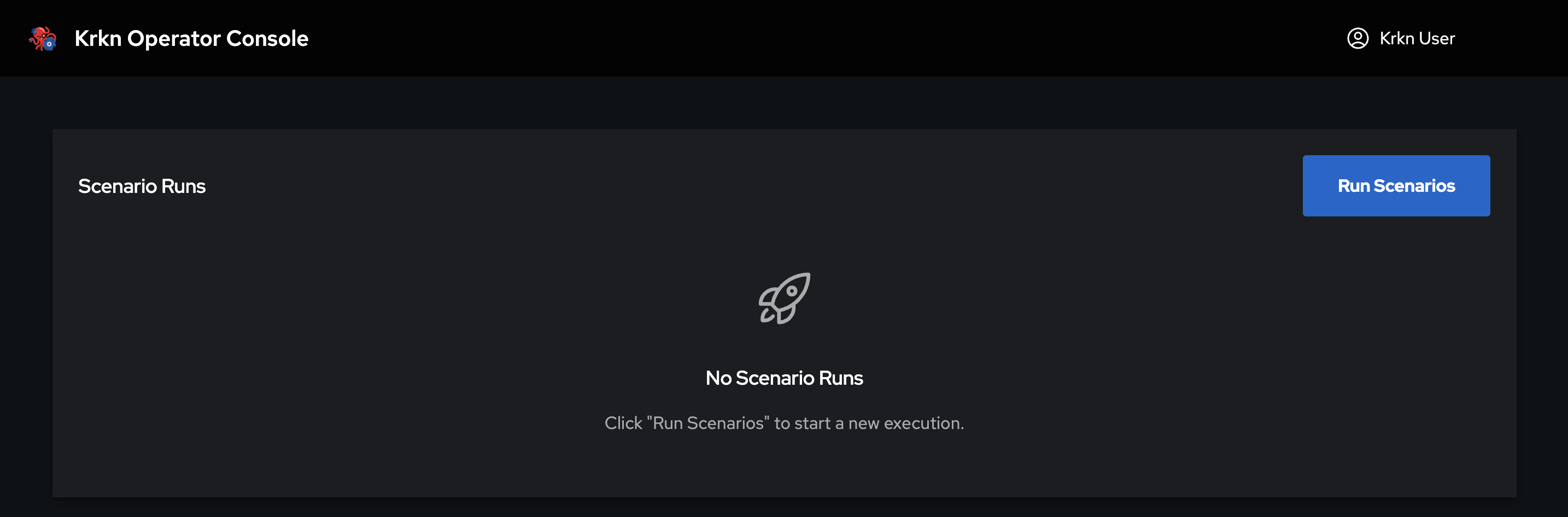
To begin running a chaos scenario, click the Run Scenario button. This will launch the scenario configuration wizard that guides you through the setup process.
Step 2: Selecting Target Clusters
The first step in the wizard is selecting which clusters you want to target with your chaos experiment.
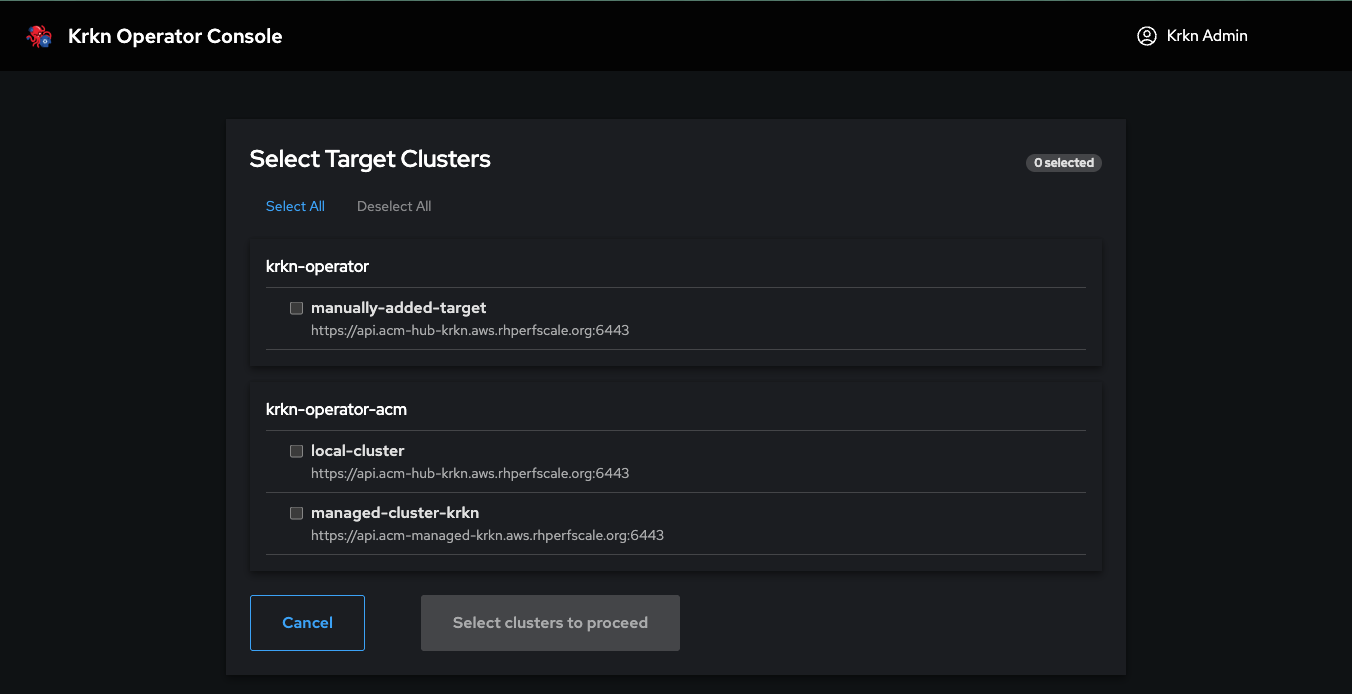
One of the powerful features of Krkn Operator is its ability to run scenarios across multiple clusters simultaneously. If you have configured multiple target providers (such as manual targets and ACM-managed clusters), all available clusters will be presented in a unified view.
Key capabilities:
- Multi-cluster selection: Select one or more target clusters to run the same scenario across multiple environments
- Unified view: All clusters from all configured providers (manual targets, ACM, etc.) are displayed together
- Parallel execution: When multiple targets are selected, the scenario will execute on all of them concurrently
This is particularly useful for testing:
- Consistency of behavior across environments (dev, staging, production)
- Regional cluster resilience
- Multi-tenant cluster configurations
- Different Kubernetes distributions or versions
Step 3: Selecting a Scenario Registry
After selecting your target clusters, you’ll choose where to pull the chaos scenario container images from.
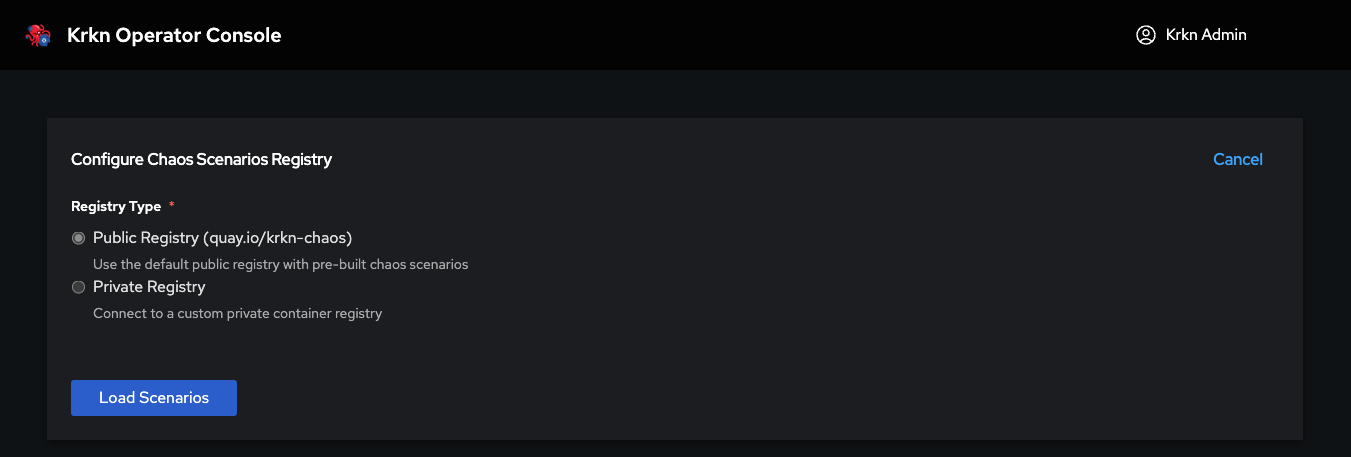
Krkn Operator supports two types of registries:
Quay.io (Default)
The default option is the official Krkn Chaos registry on Quay.io, which contains all the pre-built, tested chaos scenarios maintained by the Krkn community. This is the recommended choice for most users as it provides:
- Immediate access to 20+ chaos scenarios
- Regular updates and new scenario releases
- Pre-validated and tested scenario images
Private Registry
For organizations with specific requirements, you can configure a private container registry. This is useful when you need to:
- Run custom or modified chaos scenarios
- Operate in restricted network environments
- Maintain full control over scenario versions
- Meet compliance or security requirements
To use a private registry, you’ll need to:
- Configure the private registry in the Configuration section
- Push the Krkn scenario images to your private registry
- Ensure the operator has proper authentication credentials
Step 4: Selecting a Chaos Scenario
After choosing your registry, you’ll be presented with a list of available chaos scenarios to run against your target clusters.
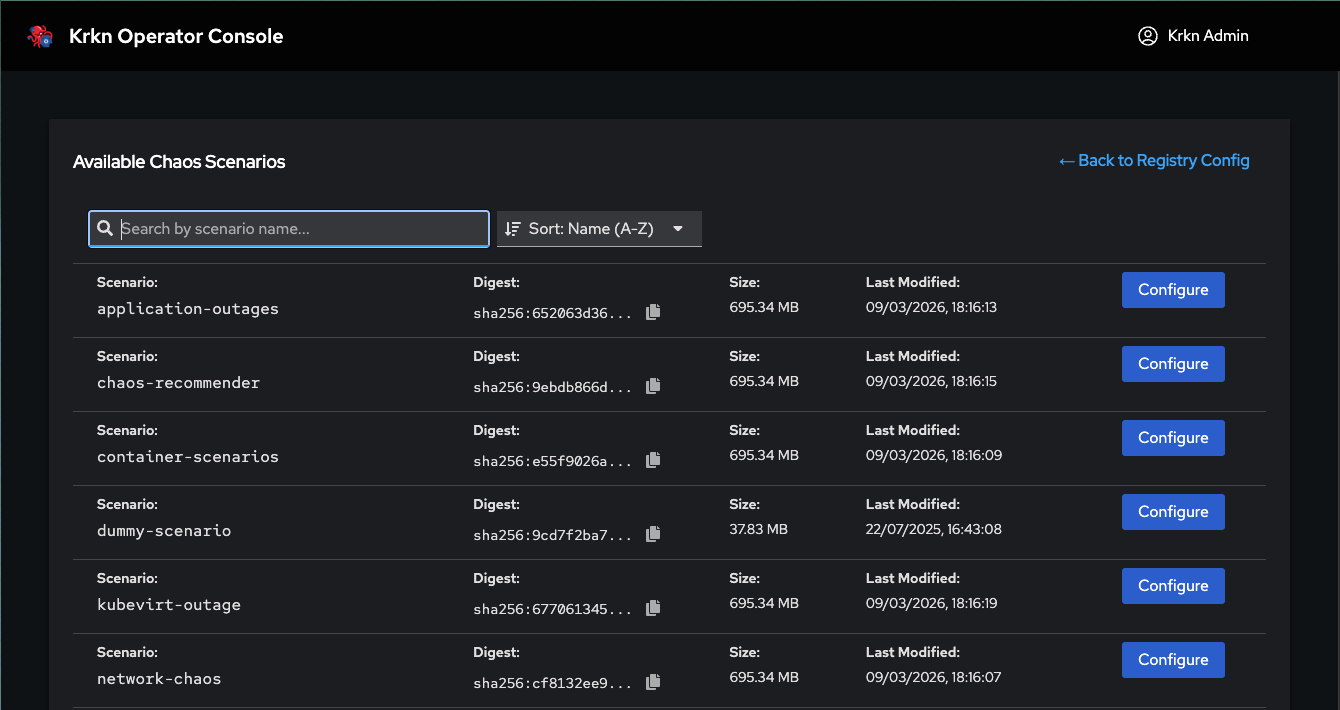
The scenario selection page displays all available chaos scenarios from the chosen registry. Each scenario card shows:
- Scenario name and description
- Scenario type (pod, node, network, etc.)
- Version information
Browse through the available scenarios and select the one that matches your chaos engineering objectives. For detailed information about each scenario and what it does, refer to the Scenarios documentation.
Step 5: Configuring Scenario Parameters
Once you’ve selected a scenario, you’ll move to the configuration phase where you can customize the scenario’s behavior to match your testing requirements.
Mandatory Parameters
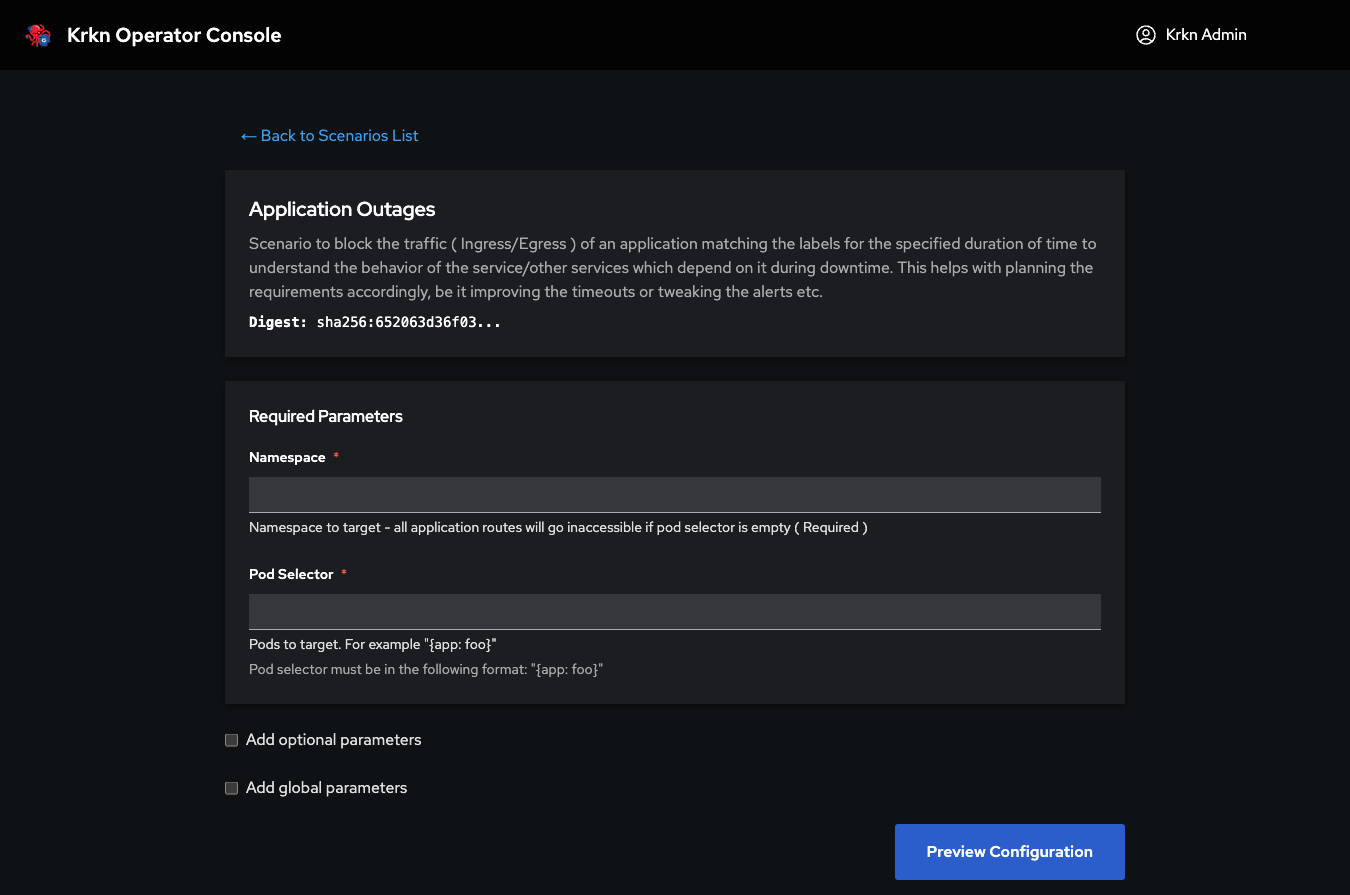
Mandatory parameters are scenario-specific settings that must be configured before running the chaos experiment. When a scenario has mandatory parameters, you cannot proceed without providing values for them.
Important notes:
- Required when present: If a scenario displays mandatory parameters, you must fill them in—there are no defaults
- Not all scenarios have them: Some scenarios can run without any mandatory configuration
- Scenario-specific: Different scenarios have different mandatory parameters based on what they’re testing
If a scenario has no mandatory parameters, it can technically run with just the built-in defaults. However, running with defaults alone may not produce the desired chaos effect on your cluster, as the scenario won’t be tailored to your specific environment and applications.
Best Practice: Even when mandatory parameters aren’t present, review the optional parameters to ensure the scenario targets the right resources and behaves as expected in your environment. For example, a pod deletion scenario might run with defaults, but you’ll want to configure it to target your specific application namespace and workloads.
Optional Parameters
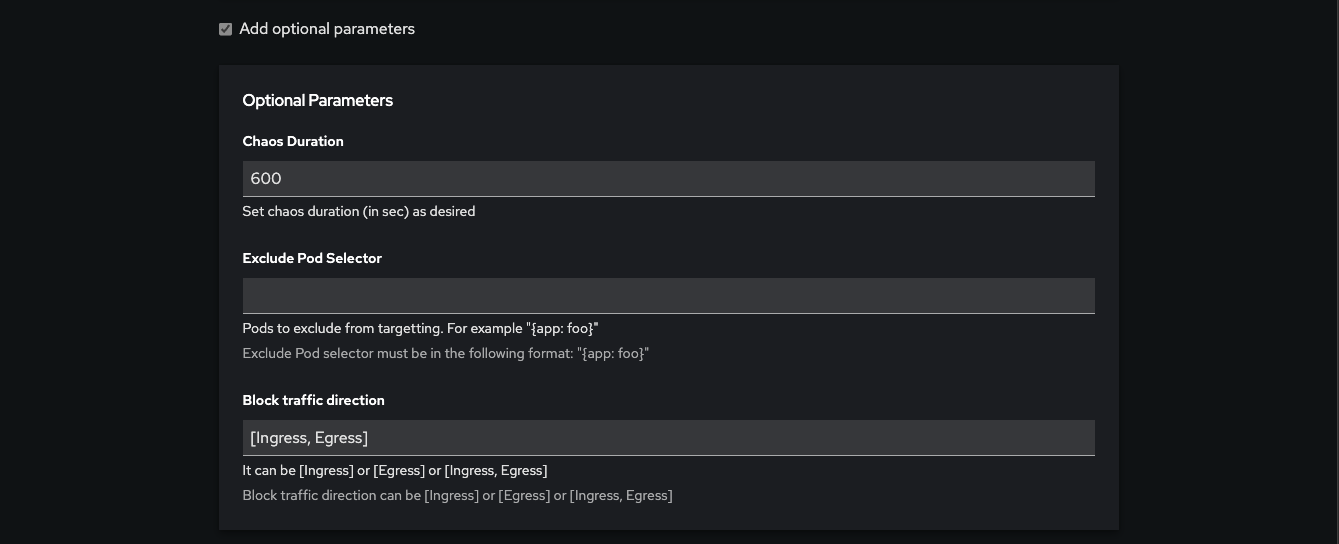
Optional parameters provide fine-grained control over the scenario’s behavior. These parameters:
- Allow you to customize the chaos experiment beyond the basic configuration
- Are entirely optional—scenarios run perfectly fine without setting them
- Enable advanced testing patterns (custom filters, label selectors, timing controls, etc.)
Examples of optional parameters might include:
- Label selectors to target specific pods
- Duration and interval settings
- Percentage of resources to affect
- Custom filters or exclusion rules
Global Options
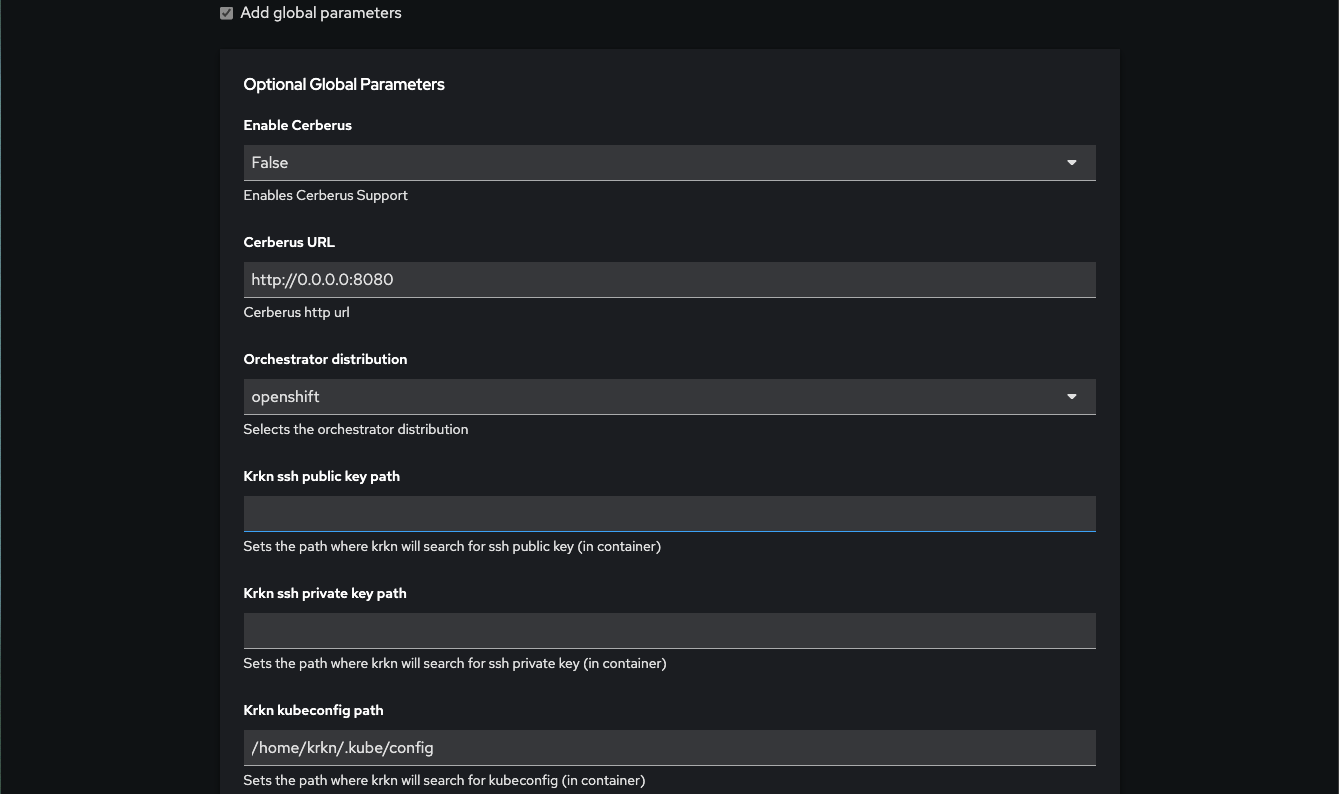
Global options control the behavior of the Krkn framework itself, not the specific scenario. These settings enable integration with observability and monitoring tools:
- Elasticsearch integration: Send scenario metrics and results to Elasticsearch
- Prometheus integration: Export chaos metrics to Prometheus
- Alert collection: Capture and analyze alerts triggered during the chaos experiment
- Custom dashboards: Configure metrics export for custom monitoring dashboards
- Cerberus integration: Enable health monitoring during chaos runs
After configuring all parameters, click Run Scenario to launch the chaos experiment.
Monitoring Scenario Runs
Once you launch a scenario, you can monitor its execution in real-time through the Krkn Operator web interface.
Active Scenarios Dashboard
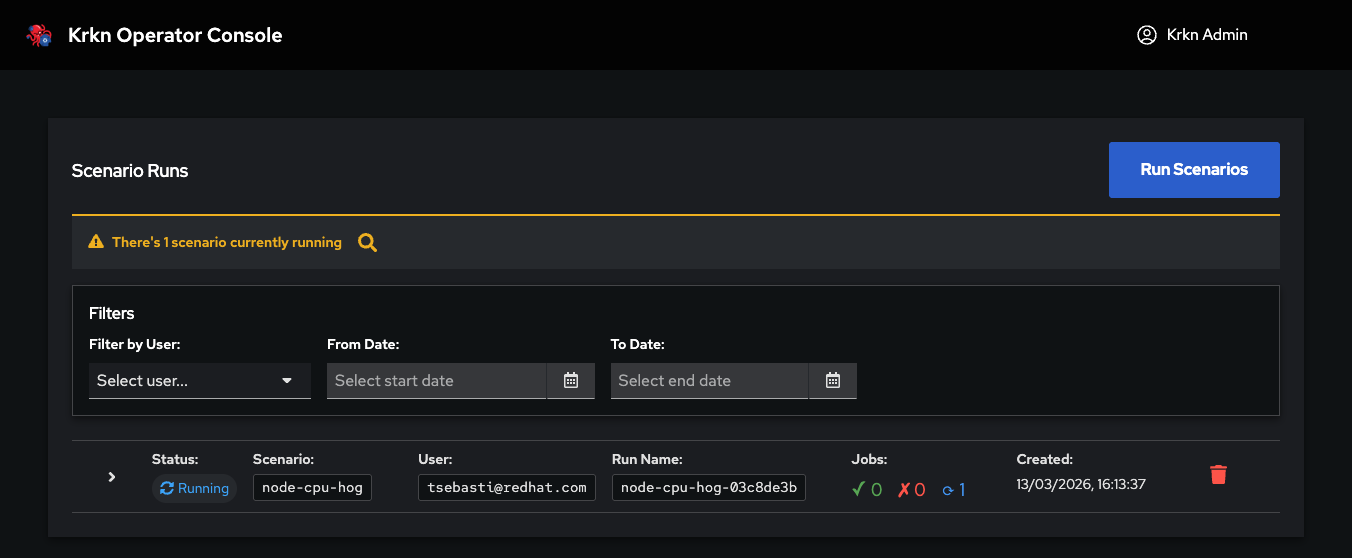
The home page displays all active scenario runs across all target clusters. Each scenario card shows:
- Scenario name and type
- Target cluster(s) where it’s running
- Current status (running, completed, failed)
- Start time and duration
- User who initiated the run
From this dashboard, you can:
- View all running experiments at a glance
- Click on a scenario to see detailed execution information
- Stop or cancel running scenarios (if you have permissions)
Scenario Run Details
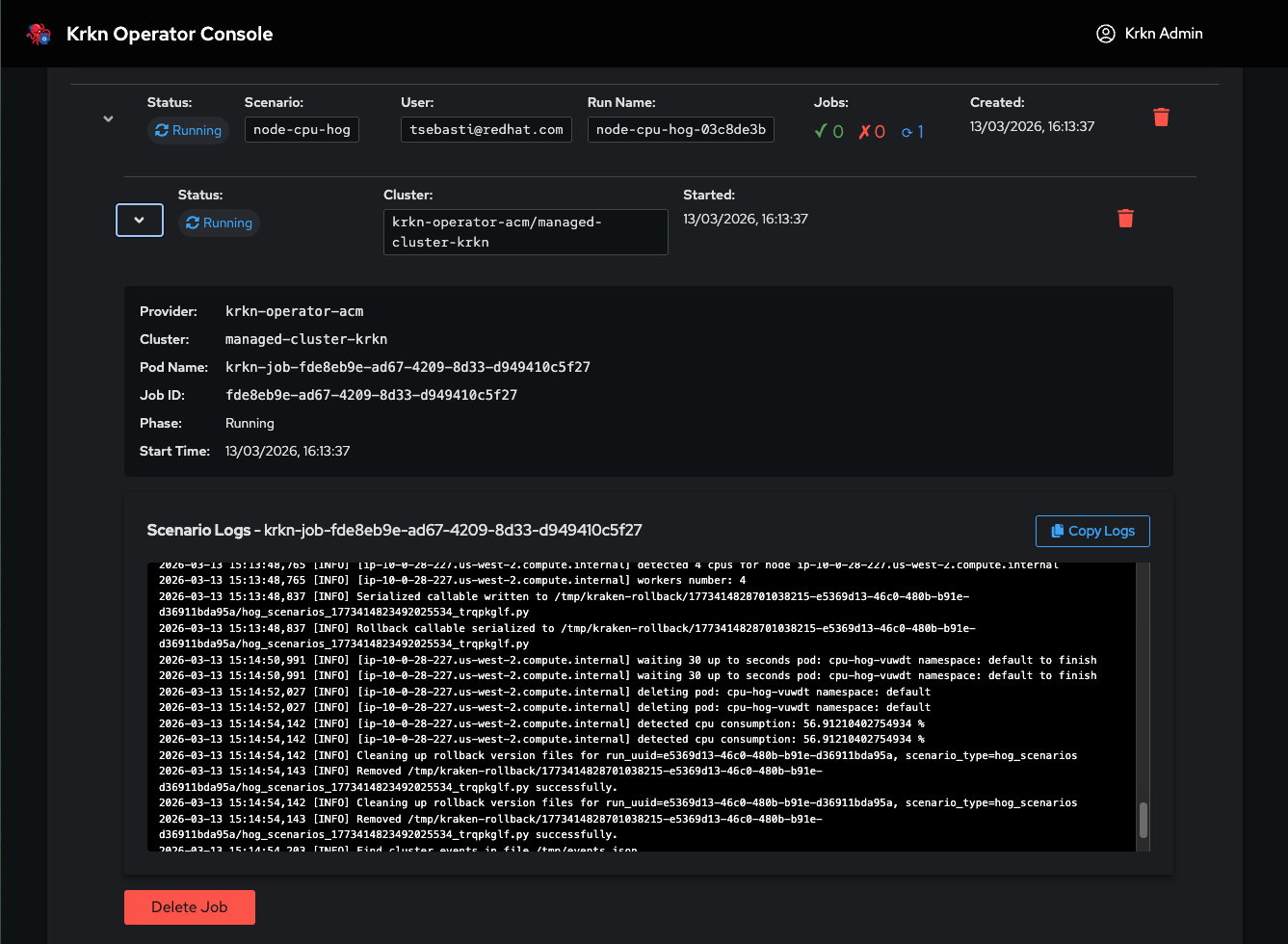
Clicking on a running scenario opens the detailed view, which provides:
- Real-time container logs: Watch the chaos scenario execute with live log streaming
- Execution timeline: See when the scenario started, its current phase, and expected completion
- Configuration details: Review the parameters that were used for this run
- Target information: Verify which cluster(s) the scenario is affecting
- Status updates: Real-time status changes as the scenario progresses through its phases
The live log streaming is particularly useful for:
- Debugging scenario failures
- Understanding what the chaos experiment is currently doing
- Verifying that the chaos is being injected as expected
- Capturing evidence for post-experiment analysis
User Permissions and Visibility
Role-Based Access Control: Scenario visibility and management capabilities depend on your user role.
Administrator users can:
- View all scenario runs from all users
- Manage any running scenario
- Cancel experiments initiated by any user
Regular users can:
- View only their own scenario runs
- Manage only scenarios they initiated
- Scenarios started by other users are not visible to them
This role-based access control ensures that teams can work independently while administrators maintain oversight and control of all chaos engineering activities.
What’s Next?
Now that you understand how to run and monitor chaos scenarios with Krkn Operator, you might want to:
- Explore the Scenarios documentation to understand what each chaos scenario does
- Review Best Practices for effective chaos engineering
- Learn about Advanced Configuration options for integrating with monitoring tools
- Set up Private Registry for custom or modified scenarios