Administrators configure the platform infrastructure that users operate on. This includes registering clusters, managing users and groups, setting up private registries, cloud credentials, observability endpoints and target providers.
Permission Model
The Admin creates groups that define what users can do on the platform. Each group specifies:
Which clusters are accessible
Which permissions are granted (View, Run, Cancel)
Which registries and cloud credentials are visible
Users inherit all permissions from their assigned group.
Admin creates Group
      │
      ├── Assigns Clusters (target-1, target-2, ...)
      ├── Assigns Permissions (View, Run, Cancel)
      ├── Assigns Registry Visibility
      └── Assigns Cloud Credential Visibility
            │
            └── Users in this group inherit everything
INFO
Every user must belong to a group. A user without a group has no access to the platform.
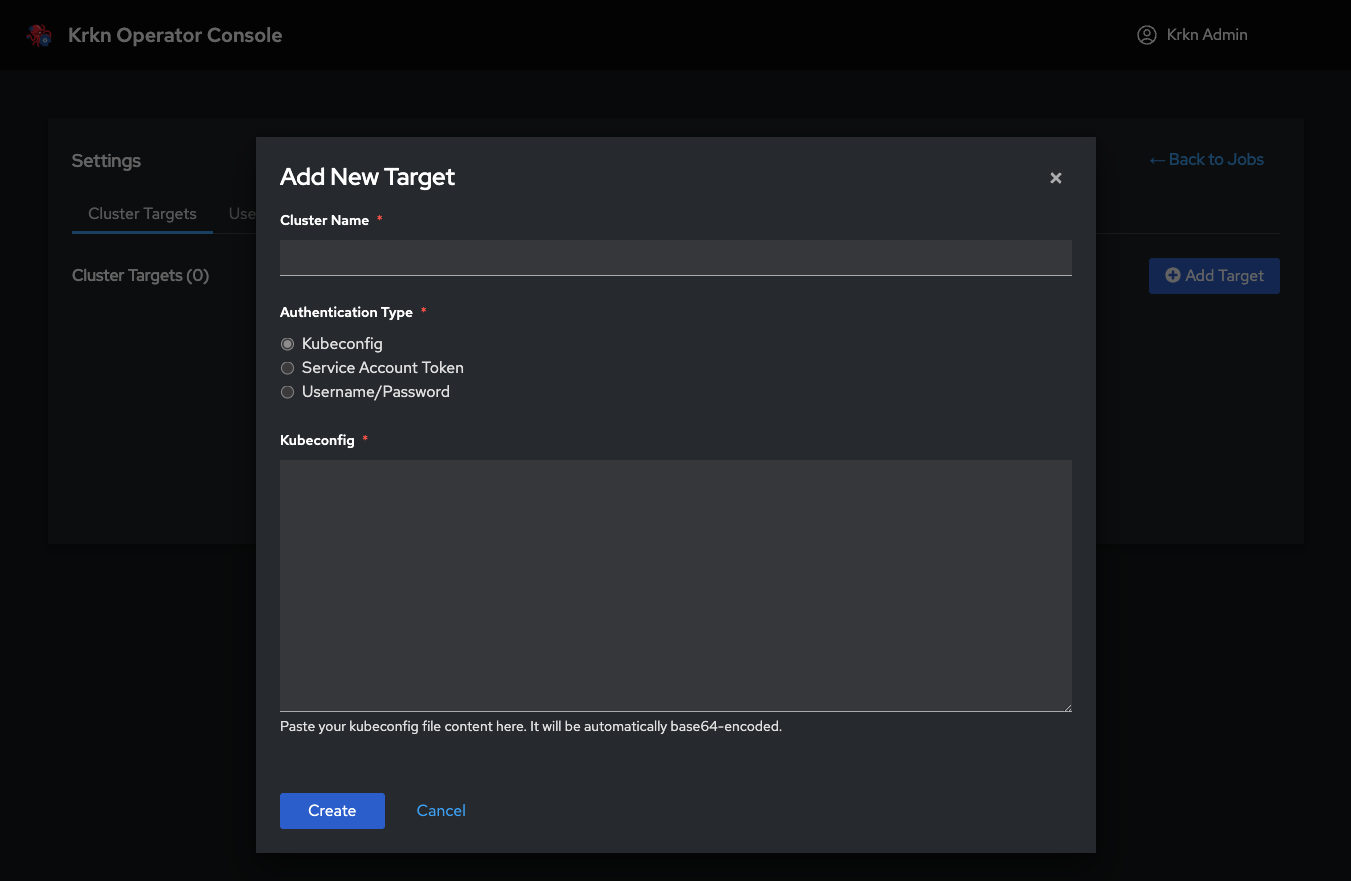
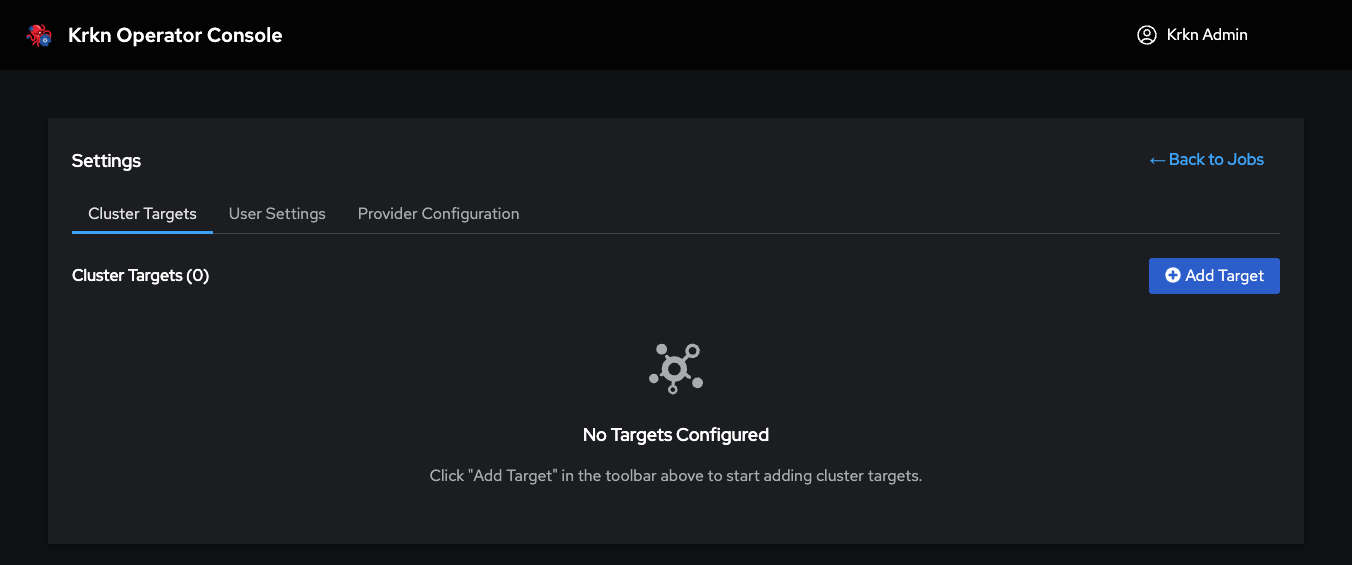
Register target Kubernetes clusters that will be available for chaos scenario execution. The operator runs on a control plane cluster and executes scenarios against registered targets — it never runs chaos against itself.
This walkthrough is retained with v1.0.0 documentation and may show an earlier interface.
Operations
Operation
Description
Add Cluster
Register a new target cluster by providing its name and kubeconfig
View Clusters
Browse all registered clusters and their status
Delete Cluster
Remove a cluster from the platform
Once registered, clusters become available for assignment to groups through User Management.
Organize users through groups that define cluster access and permissions. The group is the central unit of the permission model — users inherit all capabilities from their assigned group.
This walkthrough is retained with v1.0.0 documentation and may show an earlier interface.
Groups
A group defines what its members can access and do on the platform.
Field
Description
Name
Group identifier
Description
Purpose of the group
Cluster Permissions
Which registered clusters this group can target
Groups also receive permission flags that control what operations their members can perform:
Permission
What it grants
View
View jobs and execution results
Run
Execute scenarios, use Chaos Studio, access cluster terminal
Cancel
Cancel running jobs, and remove jobs and execution history
Users
Users are created and assigned to a group during creation.
Field
Description
User Data
Username, credentials
Group
The group this user belongs to
INFO
Group assignment is mandatory. Every user must belong to exactly one group. A user cannot be created without selecting a group. The group determines which clusters the user can target and which operations they can perform.
Permission Cascade
Group "SRE Team"
  ├── Clusters: production-us, production-eu
  ├── Permissions: View, Run
  └── Members: alice, bob
        │
        ├── alice → can run scenarios on production-us, production-eu
        └── bob   → can run scenarios on production-us, production-eu
3 - Registry Management
Configure private container registries and visibility
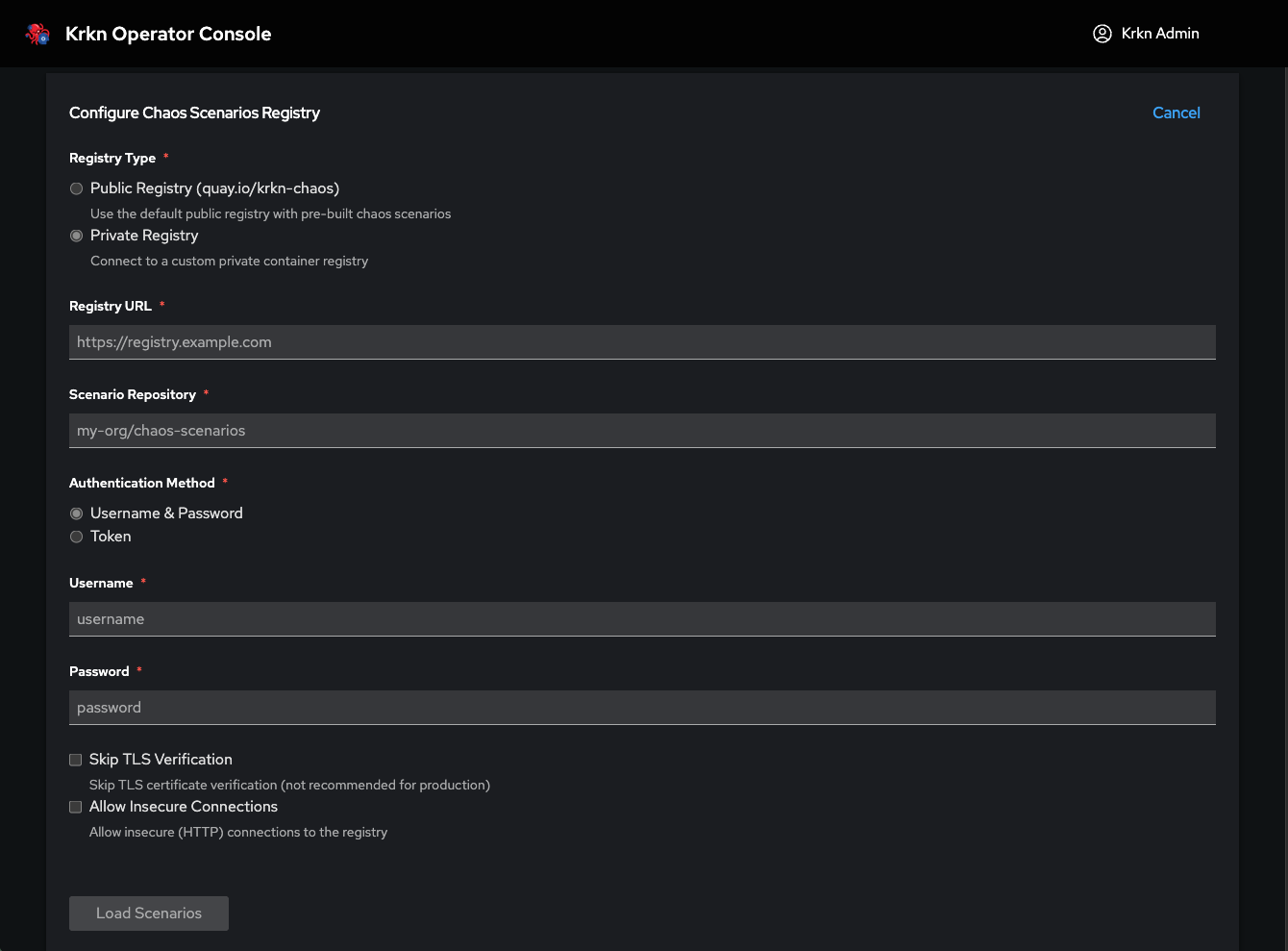
Configure private container registries for chaos scenario images and control which groups can access them. By default, scenarios are pulled from the public Quay.io registry. Private registries enable air-gapped deployments and custom scenario images.
This walkthrough is retained with v1.0.0 documentation and may show an earlier interface.
Creating a Private Registry
Configure a private registry by providing its connection settings (URL, credentials, TLS configuration).
Visibility
Each registry has a visibility setting that controls who can use it:
Visibility
Description
Everyone
All users on the platform can select this registry
Group-based
Only users belonging to assigned groups can see and use this registry
Impact on Scenario Selection
When a user selects a private registry during scenario execution, only the scenarios that have been mirrored to that registry will be available. Scenarios not present in the private registry will not appear in the selection list.
INFO
Air-Gapped Environments: The operator uses OCI registry APIs for scenario metadata. A private registry configuration allows the platform to function completely in disconnected environments without external connectivity.
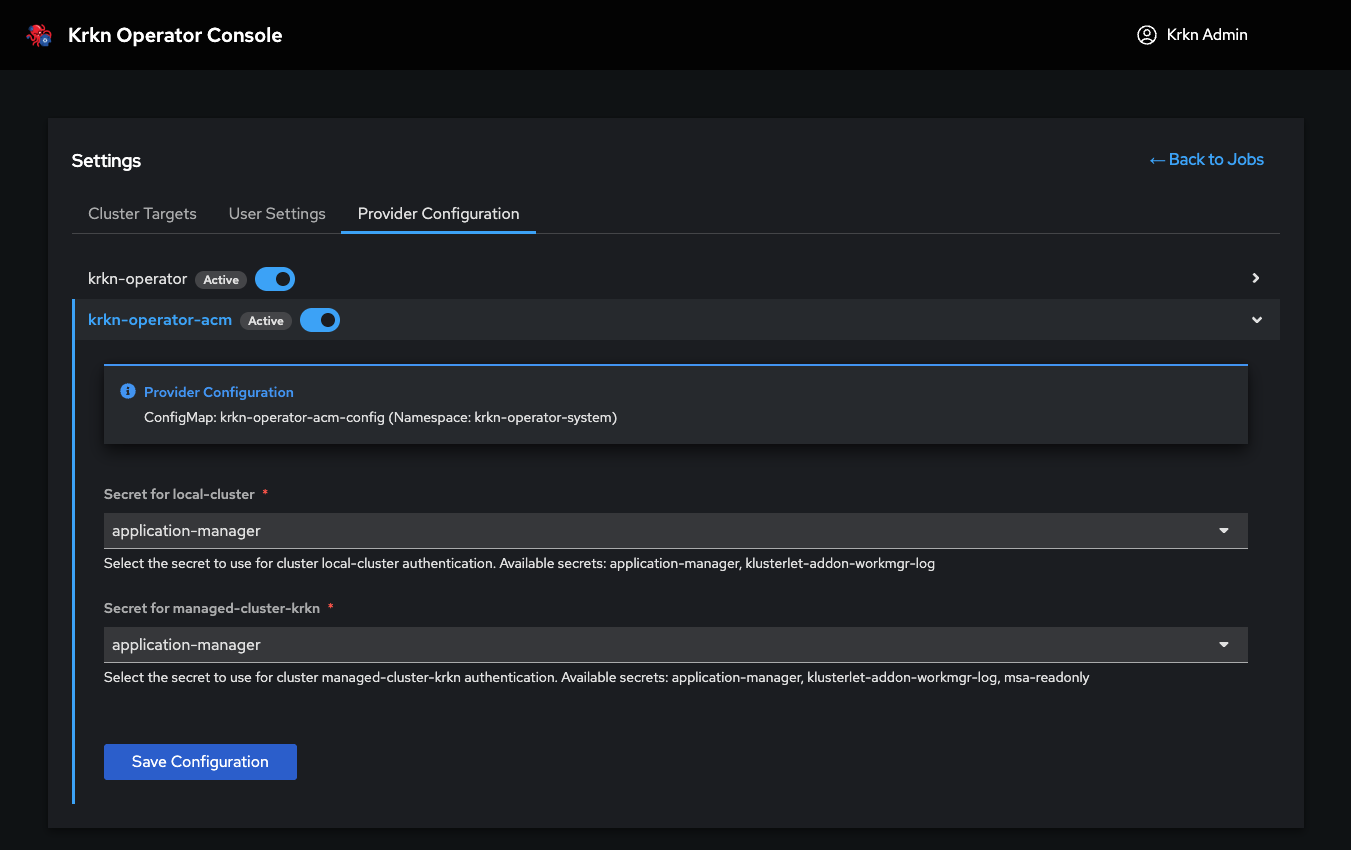
Configure target providers that integrate with external cluster management platforms. The provider configuration interface adapts dynamically based on the selected provider.
This walkthrough is retained with v1.0.0 documentation and may show an earlier interface.
Supported Providers
Provider
Description
ACM / OCM
Automatically discover and synchronize managed Kubernetes clusters through Red Hat Advanced Cluster Management or Open Cluster Management
INFO
The provider configuration interface is designed to be extensible. As new integration operators are developed, their configuration panels will appear automatically in this section.
Cloud Provider Configuration
Some chaos scenarios interact directly with cloud infrastructure and require cloud provider credentials (AWS, GCP, Azure, OpenStack, etc.) to perform node-level operations. The following scenarios are not currently available in Krkn Operator until cloud provider configuration support is added:
Scenario
Why Cloud Provider Is Required
node-scenarios
Stops, terminates, or reboots nodes via the cloud provider API
node-scenarios-bm
Controls bare metal nodes via BMC/IPMI credentials
power-outages
Shuts down and restarts the entire cluster through the cloud provider
zone-outages
Simulates availability zone failures by manipulating cloud network resources
INFO
Cloud provider configuration is not yet supported in Krkn Operator. The scenarios above cannot be executed until cloud provider credential management is introduced. This page will be updated when that support becomes available.
5 - Elasticsearch Management
Configure saved Elasticsearch endpoints for platform-wide observability
Administrators can configure and save Elasticsearch endpoints that users can reference when executing chaos scenarios. This enables centralized observability configuration without requiring users to manually enter connection details.
Overview
Elasticsearch integration allows krkn scenarios to index execution metrics, logs, and telemetry data for analysis and historical tracking. Instead of requiring each user to configure Elasticsearch details manually, admins can:
Pre-configure Elasticsearch endpoints with connection details
Save named configurations for reuse across all scenarios
Control which Elasticsearch endpoints are available platform-wide
Users can then select from the saved Elasticsearch configurations when setting global parameters during scenario execution.
INFO
Users can select saved Elasticsearch configurations but cannot add new ones. Only admins have permission to create, edit, or delete Elasticsearch endpoints.
Adding an Elasticsearch Endpoint
Navigate to Administration > Elasticsearch Management
Click Add Elasticsearch
Configure the following details:
Field
Description
Required
Name
Friendly name for this configuration (e.g., “Production ES”, “Dev Cluster”)
Index name or pattern for storing krkn data (e.g., krkn-chaos-*)
Yes
Username
Authentication username (if required)
No
Password
Authentication password (if required)
No
Verify SSL
Whether to verify SSL certificates (toggle)
Yes
Click Save to add the configuration to the saved list
Managing Saved Configurations
View Saved Elasticsearch Endpoints
The Elasticsearch Management page displays all saved configurations:
Name: Friendly identifier shown to users
URL: Elasticsearch endpoint
Index: Target index pattern
Actions: Edit or Delete options
Edit an Endpoint
Click the Edit icon next to the saved configuration
Modify any field (Name, URL, Index, credentials, SSL verification)
Click Save to update
INFO
Editing a saved Elasticsearch configuration affects all scenarios currently using it. Changes apply to future scenario executions immediately.
Delete an Endpoint
Click the Delete icon next to the saved configuration
Confirm the deletion
INFO
Deleting an Elasticsearch configuration does not affect running scenarios, but it will no longer be available for selection in new scenario executions.
How Users Select Elasticsearch
When users configure global parameters for a scenario or workflow, they can:
Expand the Global parameters section
Locate the Elasticsearch parameter
Click the dropdown to view all saved Elasticsearch configurations
Select an Elasticsearch endpoint by name (e.g., “Production ES”)
The selected configuration automatically applies the admin-defined connection details (URL, index, credentials) to the scenario execution.
Users cannot:
Add new Elasticsearch endpoints from the scenario configuration interface
Edit existing saved configurations
View sensitive details like passwords (only admins can see/edit credentials)
Users can:
Choose from the dropdown list of saved Elasticsearch endpoints
Opt not to use Elasticsearch (by leaving the parameter unset)
Best Practices
Naming Conventions
Use descriptive names that indicate the purpose or environment:
✅ Production Observability
✅ Staging Metrics
✅ Dev Team Shared ES
❌ ES1, Elasticsearch, Test
Security
Use dedicated credentials for krkn with limited write permissions to specific indices
Enable SSL verification for production endpoints
Restrict index patterns to prevent accidental data overwrites (e.g., krkn-* not *)
Index Patterns
Use time-based or scenario-based index naming:
krkn-chaos-{YYYY-MM-DD} — daily indices for easy retention management
krkn-scenarios-* — scenario-specific index pattern
krkn-{environment}-* — environment-specific indices
Administrators can configure and save cloud provider credentials that users select when running cloud-dependent chaos scenarios. Credentials are stored as Kubernetes Secrets and injected into scenario pods via SecretKeyRef — plaintext cloud secrets never appear in the Custom Resource or pod environment values.
Overview
Many krkn scenarios need cloud API access (for example node stop/start, zone outages, or power outages). Instead of asking every user to paste access keys into scenario parameters, admins can:
Pre-configure named credentials for each supported cloud provider
Control visibility so credentials are available to everyone or only to selected groups
Reuse the same credential across single runs and Chaos Studio workflows
Users then select a saved credential when configuring a scenario. Matching cloud parameter fields are filled from the Secret and locked in the UI.
INFO
Users can select saved cloud credentials they are allowed to see, but cannot create, edit, or delete them. Only admins manage credentials.
Supported Providers
Provider
Typical use
AWS
EC2 / zone / node scenarios using AWS APIs
GCP
GCE-backed node and zone scenarios
Azure
Azure node and zone scenarios
OpenStack
OpenStack compute outage scenarios
Baremetal
IPMI/BMC power and node scenarios
VMware
vSphere-backed node scenarios
IBM Cloud
IBM Cloud infrastructure scenarios
When a credential is applied, the platform also sets CLOUD_TYPE to the value expected by krkn-hub for that provider:
Provider
CLOUD_TYPE value
AWS
aws
GCP
gcp
Azure
azure
OpenStack
openstack
Baremetal
bm
VMware
vmware
IBM Cloud
ibmcloud
Adding a Cloud Credential
Navigate to Settings > Cloud Credentials
Click Create Cloud Credential (or the add action)
Configure the common fields, then the provider-specific fields below
Click Save to create the credential
Common fields
Field
Description
Required
Name
Unique credential name (used when users select it). Lowercase alphanumeric and hyphens
Yes
Provider
Cloud provider (cannot be changed after create)
Yes
Description
Short note for operators
No
Visibility
Everyone or Group-based access
Yes
Provider-specific fields
AWS
Field
Required
Access Key ID
Yes
Secret Access Key
Yes
Default Region
Yes
GCP
Field
Required
Service Account JSON (base64-encoded)
Yes
GCP credentials are mounted into the scenario pod as a file. The operator also sets GOOGLE_APPLICATION_CREDENTIALS to that mount path.
Azure
Field
Required
Tenant ID
Yes
Client ID
Yes
Client Secret
Yes
Subscription ID
Yes
OpenStack
Field
Required
Auth URL
Yes
Username
Yes
Password
Yes
Project Name
Yes
Domain Name
No (optional; injected only when present on the Secret)
Baremetal (IPMI/BMC)
Field
Required
BMC User
Yes
BMC Password
Yes
BMC Address
Yes
VMware
Field
Required
vSphere IP
Yes
vSphere Username
Yes
vSphere Password
Yes
IBM Cloud
Field
Required
IBM Cloud URL
Yes
API Key
Yes
INFO
These credential names are reserved and cannot be used: available, aws, gcp, azure, openstack, baremetal, vmware, ibmcloud.
Visibility
Each credential has a visibility setting that controls who can use it:
Visibility
Description
Everyone
All users on the platform can select this credential
Group-based
Only users belonging to the assigned groups can see and use this credential
INFO
Partial updates (for example rotating a region or key) preserve existing access labels unless you explicitly change visibility or group membership.
Managing Saved Credentials
View Credentials
The Cloud Credentials page lists saved configurations with:
Name: Identifier shown in scenario selection
Provider: Cloud provider type
Access: Everyone or assigned groups
Actions: Edit or Delete
Admins can filter the list by name, provider, and access type.
Edit a Credential
Click Edit next to the credential
Update description, visibility, groups, or provider secret fields
Click Save
The provider cannot be changed after creation — create a new credential if you need a different provider. Secret values are never shown after creation. Leave a secret field empty to keep the existing value; provide a new value only when rotating credentials.
INFO
Editing a saved credential affects future scenario executions that select it. Already running pods keep the Secret values they started with.
Delete a Credential
Click Delete next to the credential
Confirm the deletion
INFO
Deleting a credential removes it from selection for new runs. It does not cancel jobs that already started with that credential.
How Credentials Are Injected
When a run references a cloud credential:
The console (and API) store only the credential name on the run (cloudCredentialRef)
Cloud-related environment variables from the request are stripped so plaintext keys cannot land in the Custom Resource
The operator loads the credential Secret and injects values into the scenario pod using SecretKeyRef (and file mounts where required, such as GCP service-account JSON)
Users cannot:
Create or edit credentials from the scenario wizard
View secret values for saved credentials
Select credentials outside their visibility (group membership)
Users can:
Choose from the credentials available to them
Clear the selection and enter parameters manually when no credential is needed
The Krkn Operator includes a built-in backup and restore feature accessible from the web console. Backups contain portable operator configuration for:
Admin settings
Cluster targets
Users and groups
Private registries
Elasticsearch configuration
Provider configuration
The backup also includes the operator-managed secrets required for these settings.
This feature is not a complete Kubernetes or cluster backup. It does not include runtime registration objects, ACM integration data, uploaded files, file metadata, or the JWT signing key.
Creating a Backup
Navigate to the Backup & Restore card in the console.
Click Download Backup.
The operator creates a compressed .tar.gz archive and saves it to your local machine.
INFO
Security: Backup archives contain sensitive configuration data, including target connection details and operator-managed credentials. Store backups securely and restrict access to authorized administrators.
Restoring from a Backup
Open the Backup & Restore card in the console.
Click Upload & Restore.
Select a previously downloaded .tar.gz backup archive and confirm the restore.
Monitor the restore progress from the same page.
Only one restore can run at a time. The maximum upload size is 100 MB.
The restore runs asynchronously. Existing resources are updated with the corresponding configuration from the backup, while resources that do not exist are created. Resources absent from the backup are not deleted.
After the restore completes, the operator refreshes the connectivity status of restored target clusters.
INFO
Restoring a backup changes the current operator configuration. Before restoring an older archive, create a backup of the current state.
Restore Status
Restore status is available from the same page and can be:
In progress
Completed
Failed
Restore job status is held in memory and is not persisted across operator restarts.