Run Scenarios
Run Scenarios Run
Execute a chaos scenario on one or more target clusters through a guided step-by-step wizard. All scenarios can run simultaneously across multiple clusters.
This walkthrough is retained with v1.0.0 documentation and may show an earlier interface.
Execution Flow
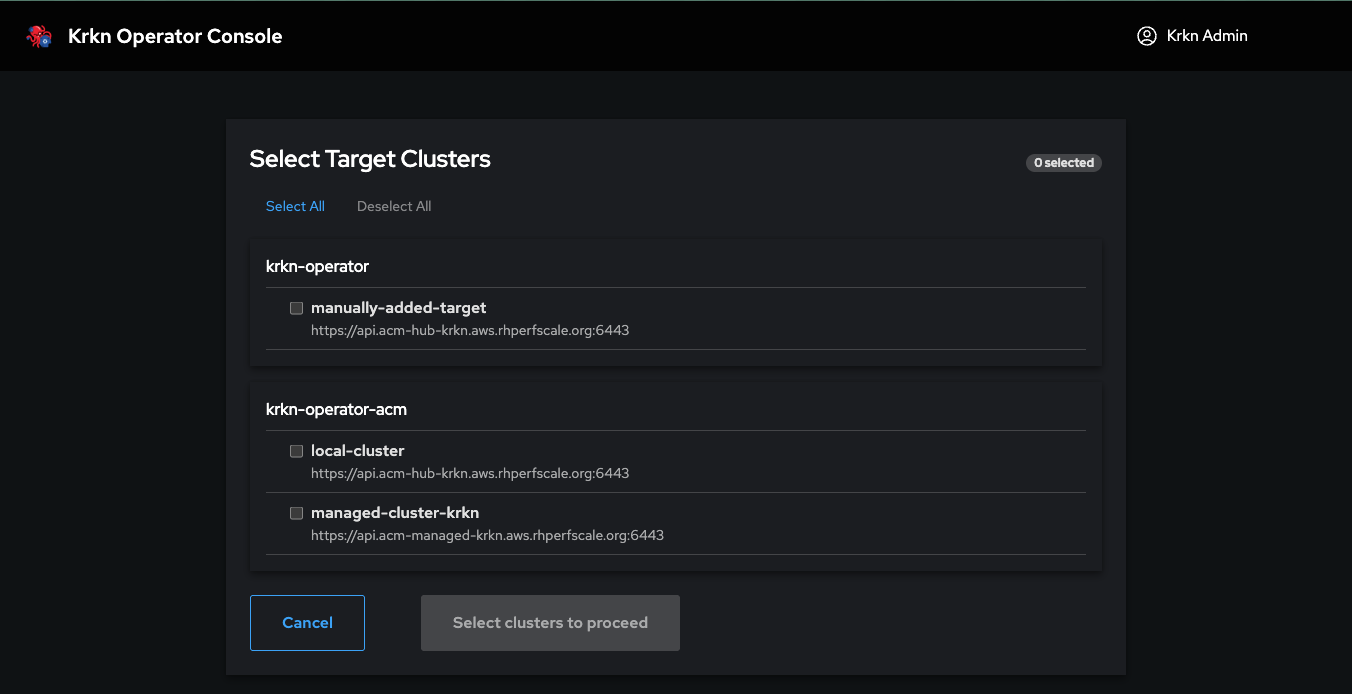
1. Select Target Clusters
Choose one or more clusters to run the scenario on. All selected clusters execute the scenario simultaneously.
2. Select Registry
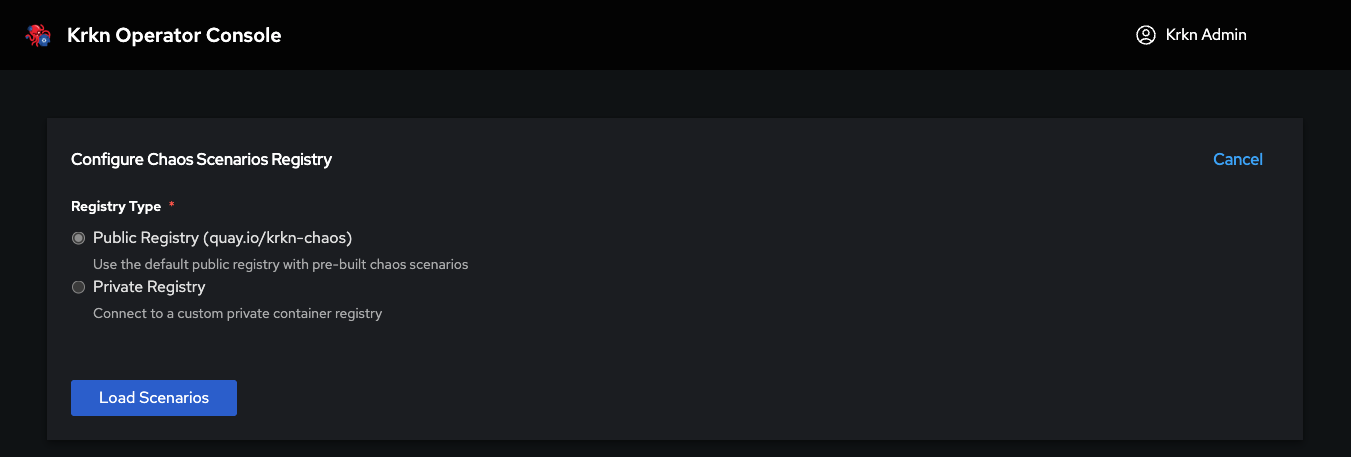
Choose the container registry for scenario images:
| Registry | Description |
|---|---|
| Public (Quay.io) | Default registry with all community scenarios |
| Private | Configured by admin, only mirrored scenarios available. Visibility controlled by group permissions |
3. Select Scenario
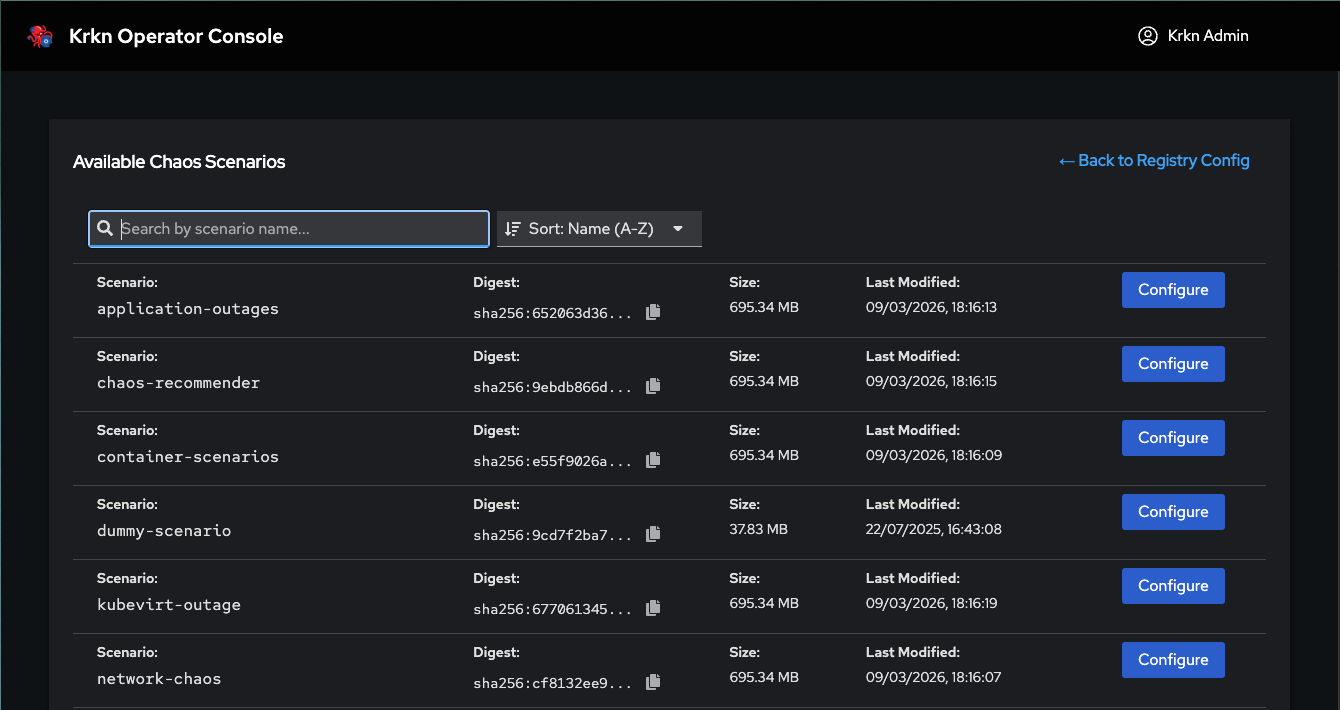
Browse and select a chaos scenario from the chosen registry.
4. Configure Parameters
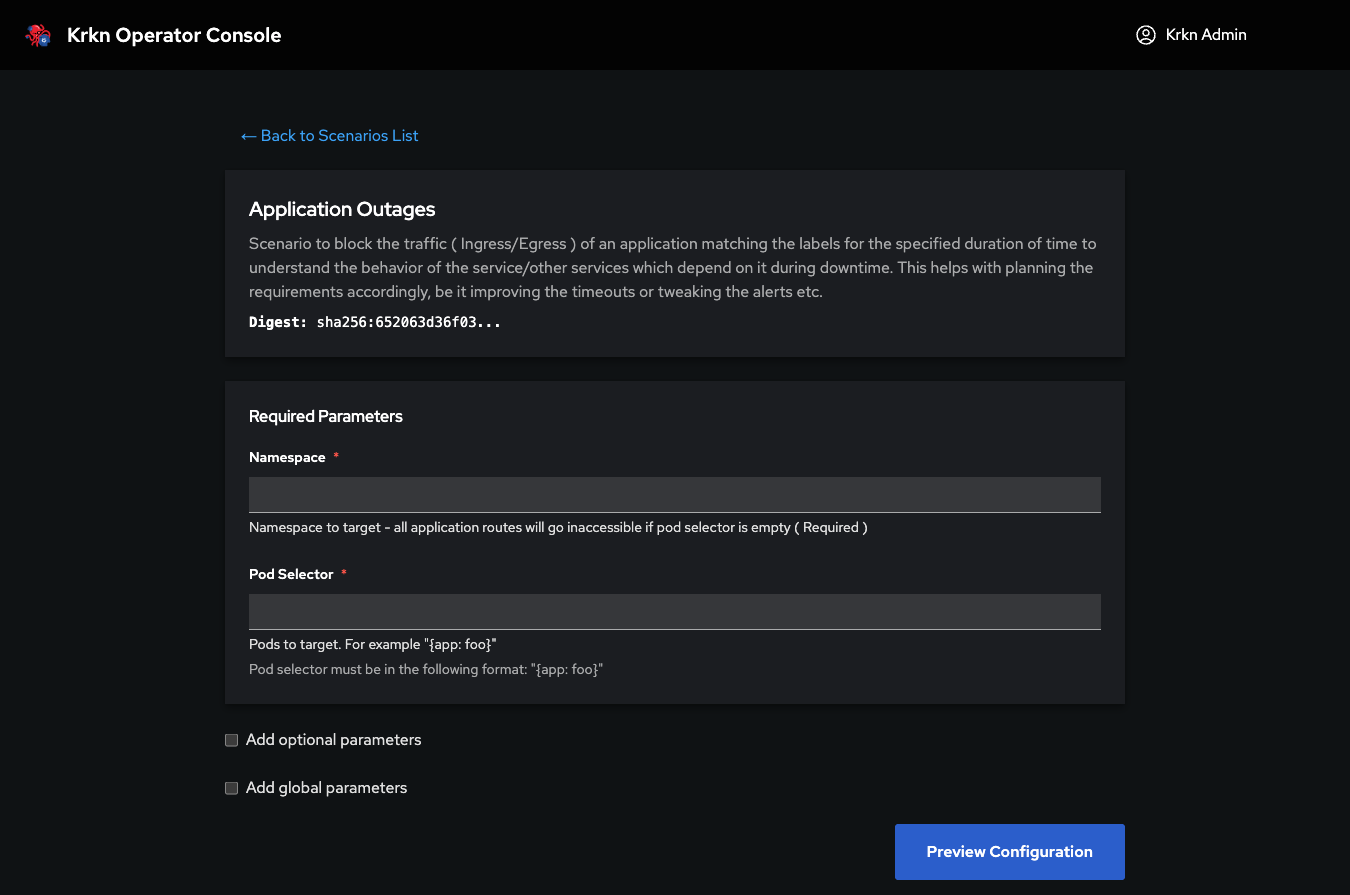
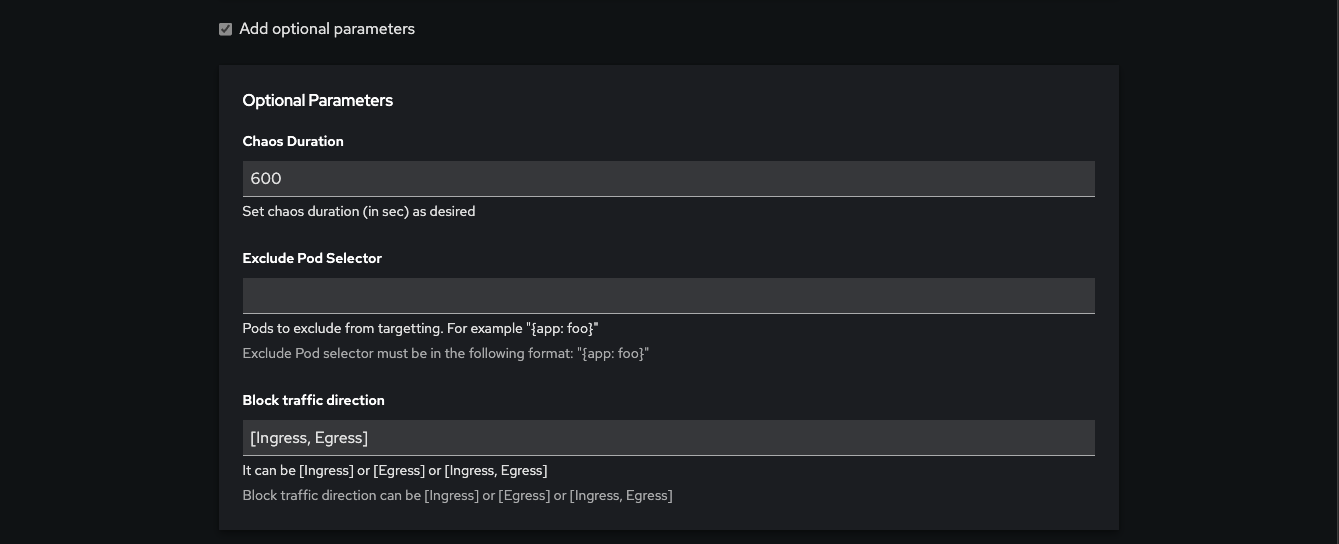
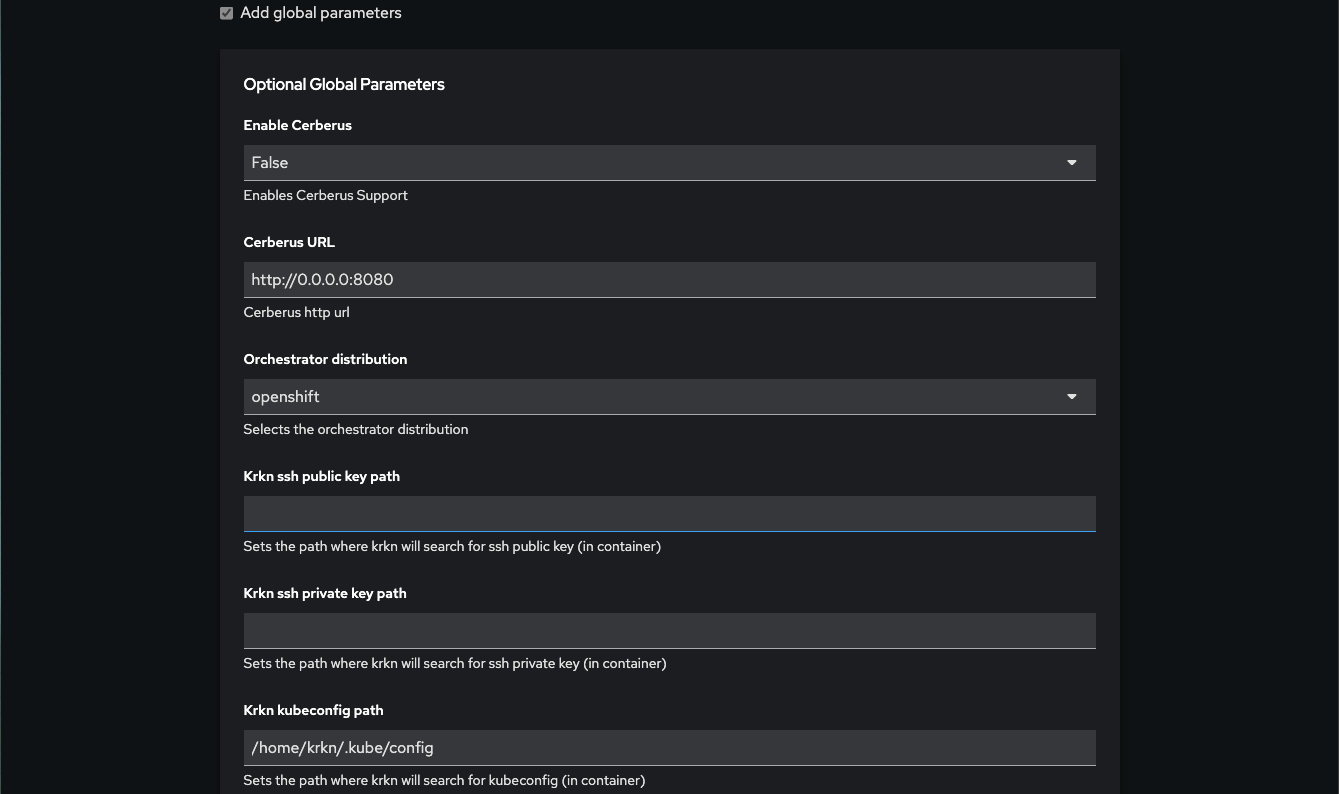
Each scenario defines its own parameter set, divided into three categories:
| Category | Description |
|---|---|
| Mandatory | Must be configured before execution. Not all scenarios have them |
| Optional | Fine-grained control over scenario behavior (label selectors, timing, filters) |
| Global | Framework-level settings (Elasticsearch, Prometheus, Cerberus integration). Applied only if modified from defaults |
Elasticsearch in Global Parameters
When configuring Global parameters, you can select a saved Elasticsearch endpoint to index scenario metrics and telemetry:
- Expand the Global parameters section
- Locate the Elasticsearch dropdown
- Select from available saved configurations (configured by your admin)
Selecting an Elasticsearch configuration automatically applies connection details (URL, index, credentials) without requiring manual input.
Load Cloud Credential
When a scenario declares cloud-related fields (CLOUD_TYPE, AWS_*, AZURE_*, and similar), a Load Cloud Credential section appears:
- Open Load Cloud Credential
- Select a saved credential from the dropdown (configured by your admin)
- Matching cloud fields become read-only and show masked placeholders (
••••••••) - Fields belonging to other cloud providers are hidden from the form
- Continue configuring non-cloud parameters as usual
The dropdown only lists credentials your group can access.
Selecting a credential stores only the credential name on the run (cloudCredentialRef). The console and API strip plaintext cloud environment variables from the payload so they cannot land in the Custom Resource. The operator injects secret values into the scenario pod via SecretKeyRef.
5. Mount Files
Optionally attach configuration files previously uploaded through File Management. Files are available via a select dropdown.
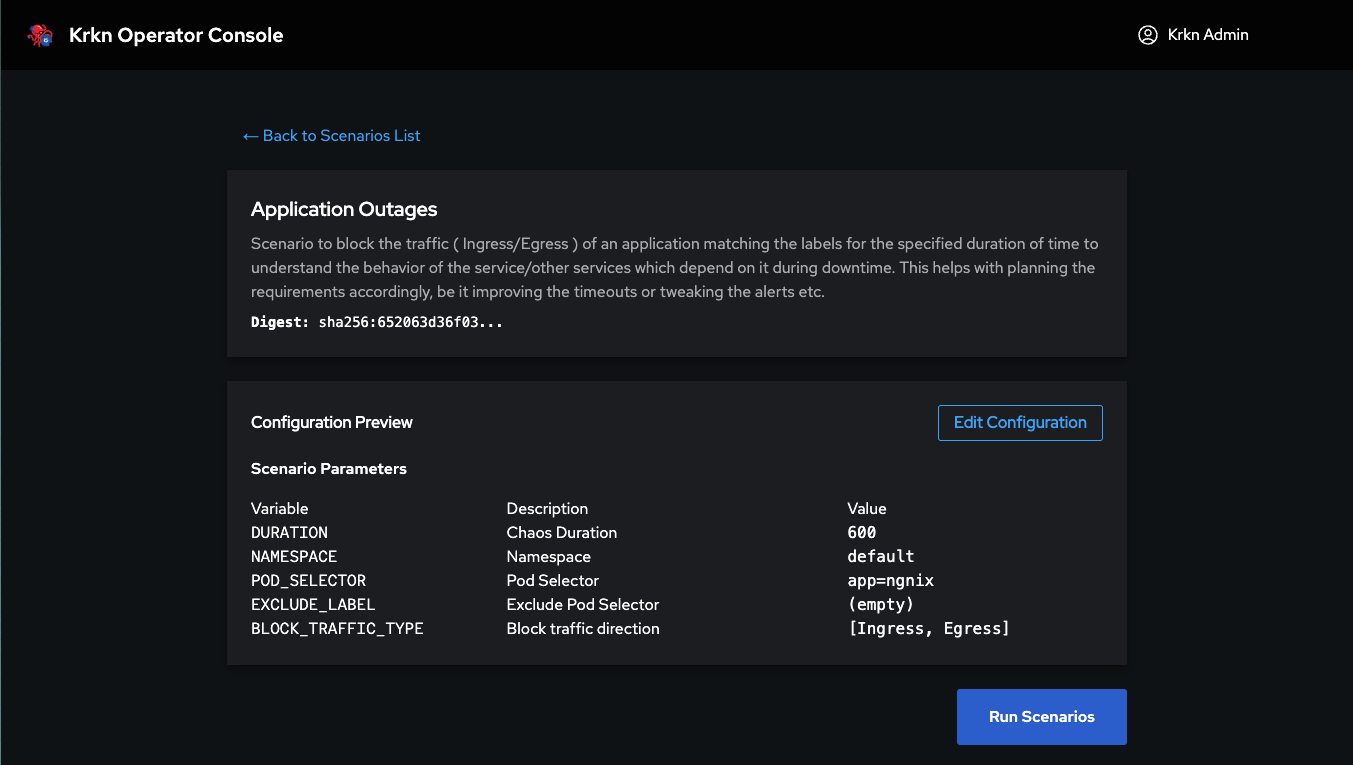
6. Preview
Review a summary of all configured parameters before execution.
7. Run
Launch the scenario. You are redirected to the Jobs page where you can monitor the execution in real time.