This is the multi-page printable view of this section. Click here to print.

Return to the regular view of this page.

Krkn Dashboard

Web-based UI to run and observe Krkn chaos scenarios, with Elasticsearch and Grafana integration.

Krkn Dashboard is the visualization and control component of krkn-hub. It provides a user-friendly web interface to run chaos experiments, watch runs in real time, and—when configured—inspect historical runs and metrics via Elasticsearch and Grafana. Instead of using the CLI or editing config files, you can trigger and monitor Krkn scenarios from your browser.


What is Krkn Dashboard?

Krkn Dashboard is a web application that sits on top of krkn-hub. The dashboard offers:

A graphical UI for visualizing runs

Select scenarios, set parameters, and start runs from the browser, no command line required. Ideal for demos and anyone who prefers an interactive interface.

Real-time visibility

See running chaos containers and stream logs as scenarios execute. Spot failures and deficiencies as they happen to locate and fix issues faster.

Saved configurations

Store and reuse scenario parameters in your browser. Recreate a test or standardize runs across your team without re-entering the same values.

Analyzing past runs

Connect to Elasticsearch to query and display past run details. Use Grafana to link to dashboards for a specific run.

Central space for collaboration

One place to view runs, share configurations, and collaborate with your team. See status, logs, and history in a single UI instead of scattered terminals or configs.


Features

Run chaos scenarios from the UI

You can run the same chaos scenarios that krkn-hub supports, but by choosing a scenario and filling in the form in the dashboard:

  1. Choose a scenario — e.g. pod-scenarios, container-scenarios, node-cpu-hog, node-io-hog, node-memory-hog, pvc-scenarios, node-scenarios, time-scenarios.
  2. Set parameters — Namespace, label selectors, disruption count, timeouts, and other scenario-specific options (the UI fields map to the environment variables used by krkn-hub).
  3. Provide cluster access — If running locally, either enter the path to your kubeconfig or upload a kubeconfig file. When running from a container, the dashboard uses a kubeconfig mounted at a fixed path.
  4. Start the run — The dashboard starts the corresponding krkn-hub container (via Podman/Docker). You can then:
    • See the container in the list of running chaos runs.
    • Stream logs in real time in the UI.
    • Download logs or inspect run status until the container exits.

Save and load configurations

You can save the current scenario and parameters and load them later. This avoids re-entering the same values and helps you recreate a specific test or share settings. Storage is in the browser (local storage/cookies).

View past runs

If you use Elasticsearch to store Krkn run data, you can connect the dashboard to your Elasticsearch instance. After connecting, you can:

  • Query run details by date range and filters.
  • See historical chaos runs and their metadata in the dashboard.

This is optional. The dashboard works without Elasticsearch for running and monitoring live scenarios.

When Elasticsearch is connected and you have configured Grafana, the dashboard can generate links to Grafana dashboards for a given run (e.g. by run UUID and other variables). That lets you jump from a run in the dashboard to the corresponding metrics and visualizations in Grafana. Grafana configuration is optional.


Getting Started

Follow the installation steps (local or containerized) to run the dashboard.
1 - Using the UI

How to run scenarios and use the dashboard once it is running.

Using the UI

Once the dashboard is running, open http://localhost:3000 (or the port shown in the terminal) in your browser. The dashboard has a side menu with other dashboard views (Overview and Metrics). Each is described below.


Overview

The Overview page is the default landing page. It has two tabs at the top:

Kraken tab

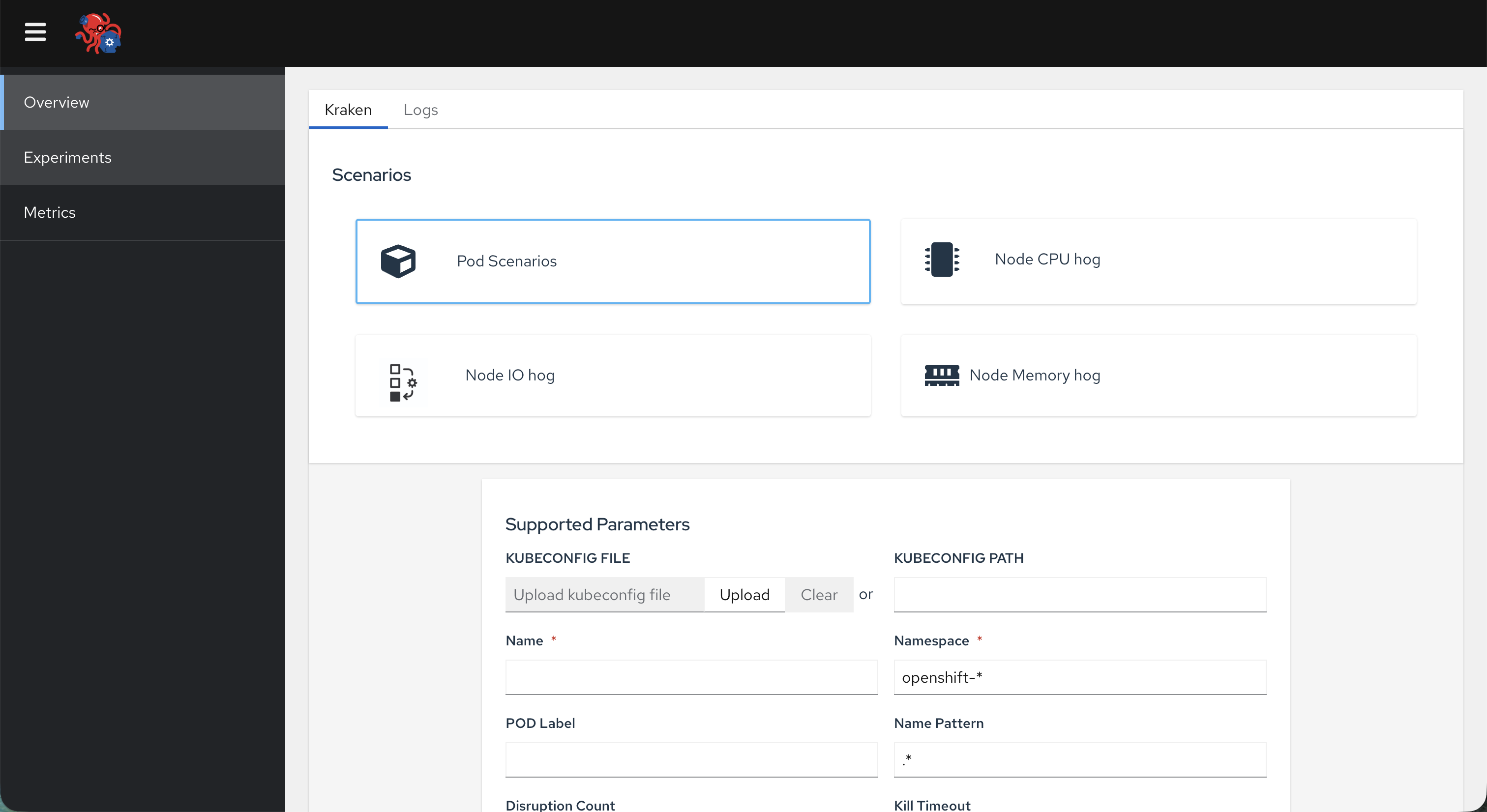
  • Scenarios card — A set of scenario tiles (e.g. Pod Scenarios, Node CPU hog, Node IO hog, Node Memory hog). Click a scenario to select it for the next run.
  • Supported Parameters — Set your parameters for the selected scenario and either enter a kubeconfig path or upload a kubeconfig file. Use Start Kraken to launch the krkn-hub container for that scenario.
  • Pod Details — A table of all krkn-hub containers known to the dashboard. Use this to see which chaos runs are active or finished.

Logs tab

  • Logs viewer — A dropdown to select a running or past container (from the same list as Pod Details). Once selected, the panel shows that container’s live or captured logs so you can watch chaos output without using the terminal.

Overview page


Metrics

The Metrics page is used for Elasticsearch and Grafana integration:

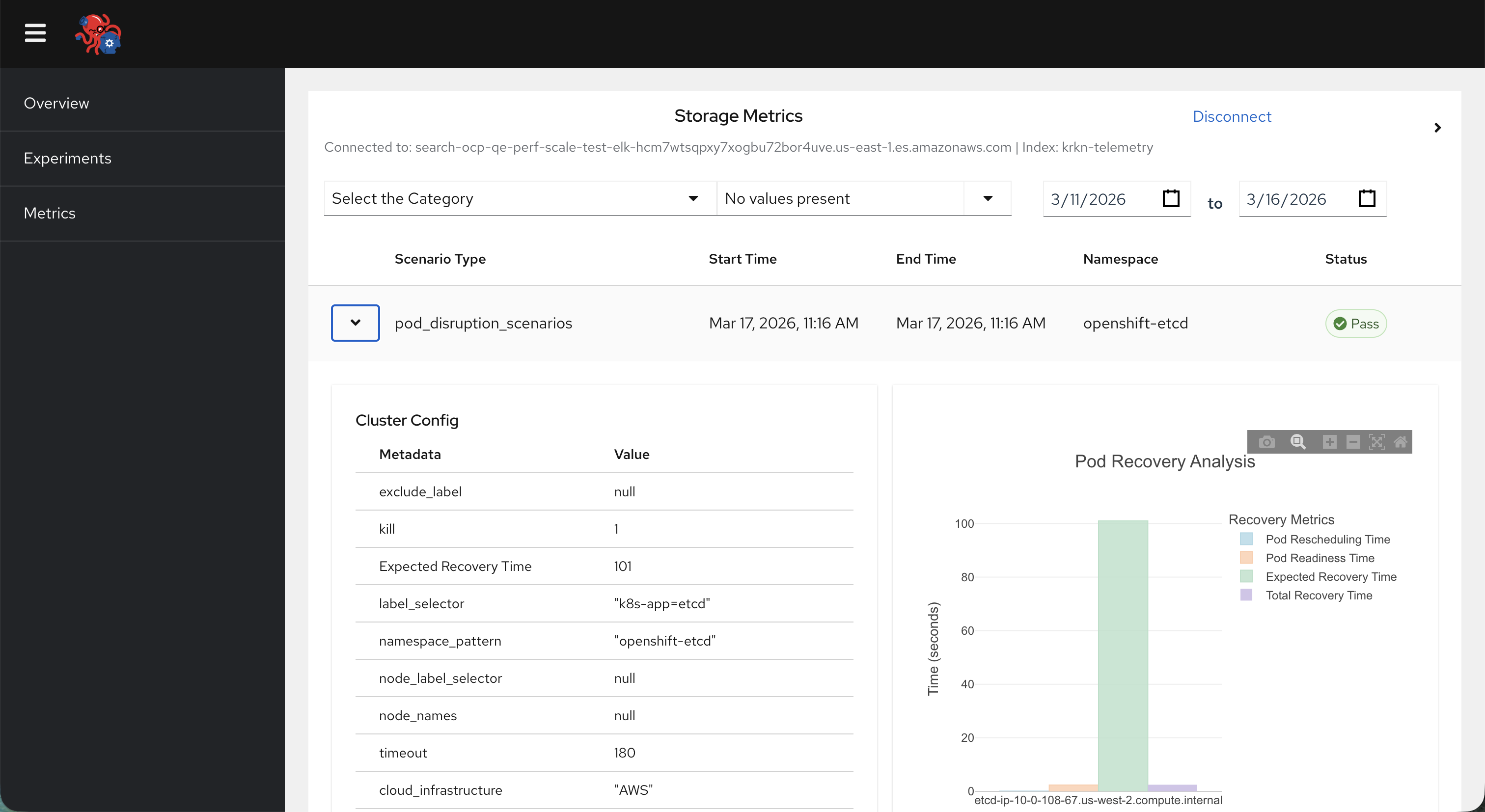
  • Storage Metrics (when not connected): Shows a form to connect to Elasticsearch (host, index, optional username/password, optional Grafana base URL and datasource). After submitting, the dashboard queries ES for past run details.
  • Storage table (when connected): The page generates graphics to better analyze run history. After a successful connection, a table of past runs from Elasticsearch appears. Rows can be expanded to show more details and, when Grafana is configured, a link to the Grafana dashboard for that run.

Metrics page