Using the UI
Deprecated
krkn-dashboard is deprecated and will be archived. If you are looking for a UI to interact with krkn, please migrate to krkn-operator.Using the UI
When starting the dashboard, if you are not signed in, you will be sent to the login page. Use the initial admin credentials from installation on first startup, or the username and password your administrator created for you. The side menu has five views: Run Kraken, Past Runs, Elastic Runs, Account Settings, and Administration. Each is described below.
Run Kraken
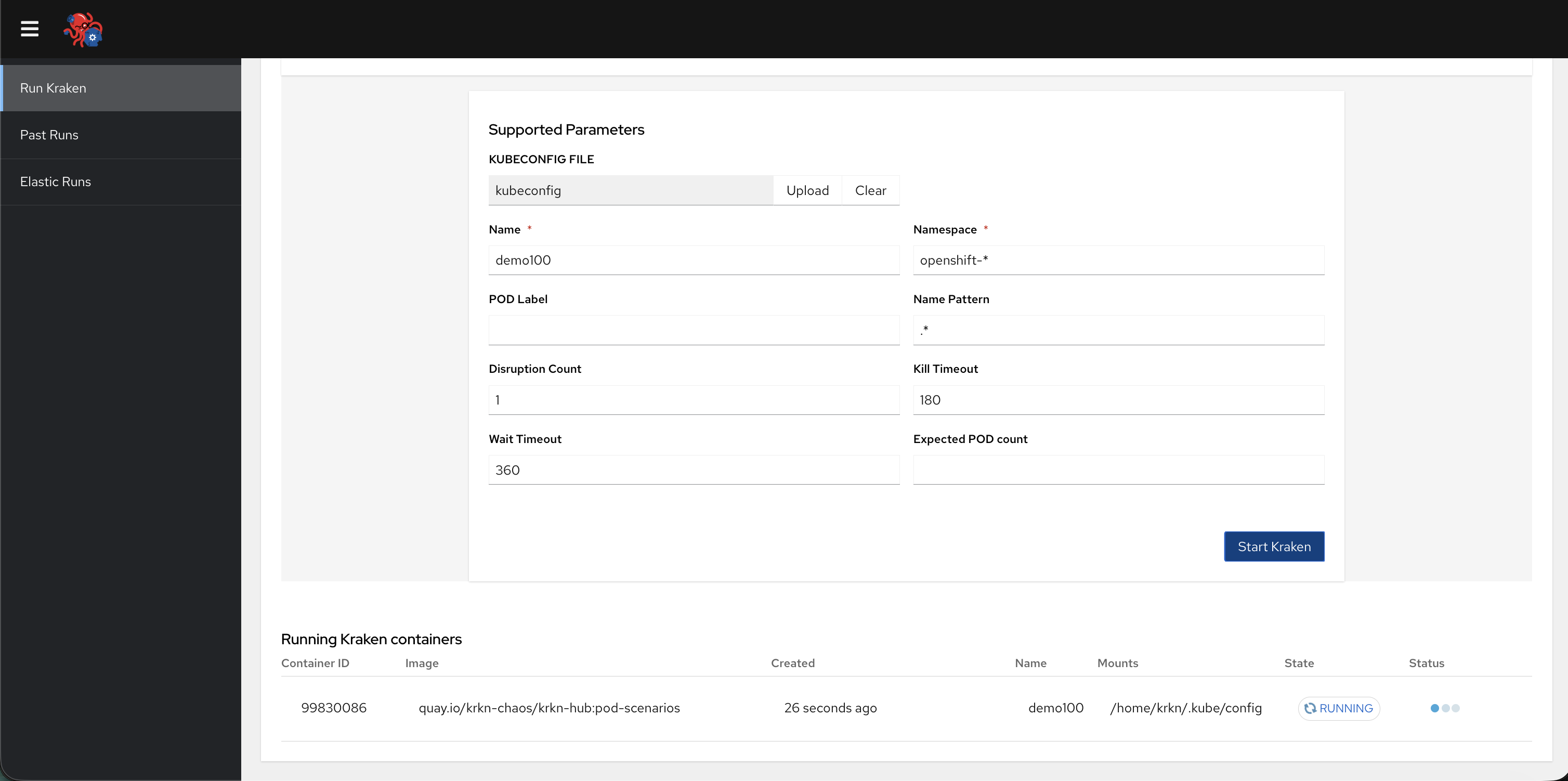
Run Kraken is the default landing page. Everything for starting a new chaos job is on this single page:
- Scenarios — Scenario tiles (Pod Scenarios, Node CPU hog, Node IO hog, Node Memory hog). Click a tile to select that scenario for the next run.
- Supported Parameters — Fields for the selected scenario, group selection, kubeconfig upload or choice, and Start Kraken to launch the krkn-hub container. Your account must have permission to run on that cluster for the selected group. If you arrived here by Replay, an inline notice shows the source run (the group defaults to the original run’s group).
- Running Kraken containers — A table of krkn-hub containers that are currently running on the host.
Past Runs
Past Runs lists jobs recorded by the dashboard for groups you are a member of. Platform admins can see all runs.
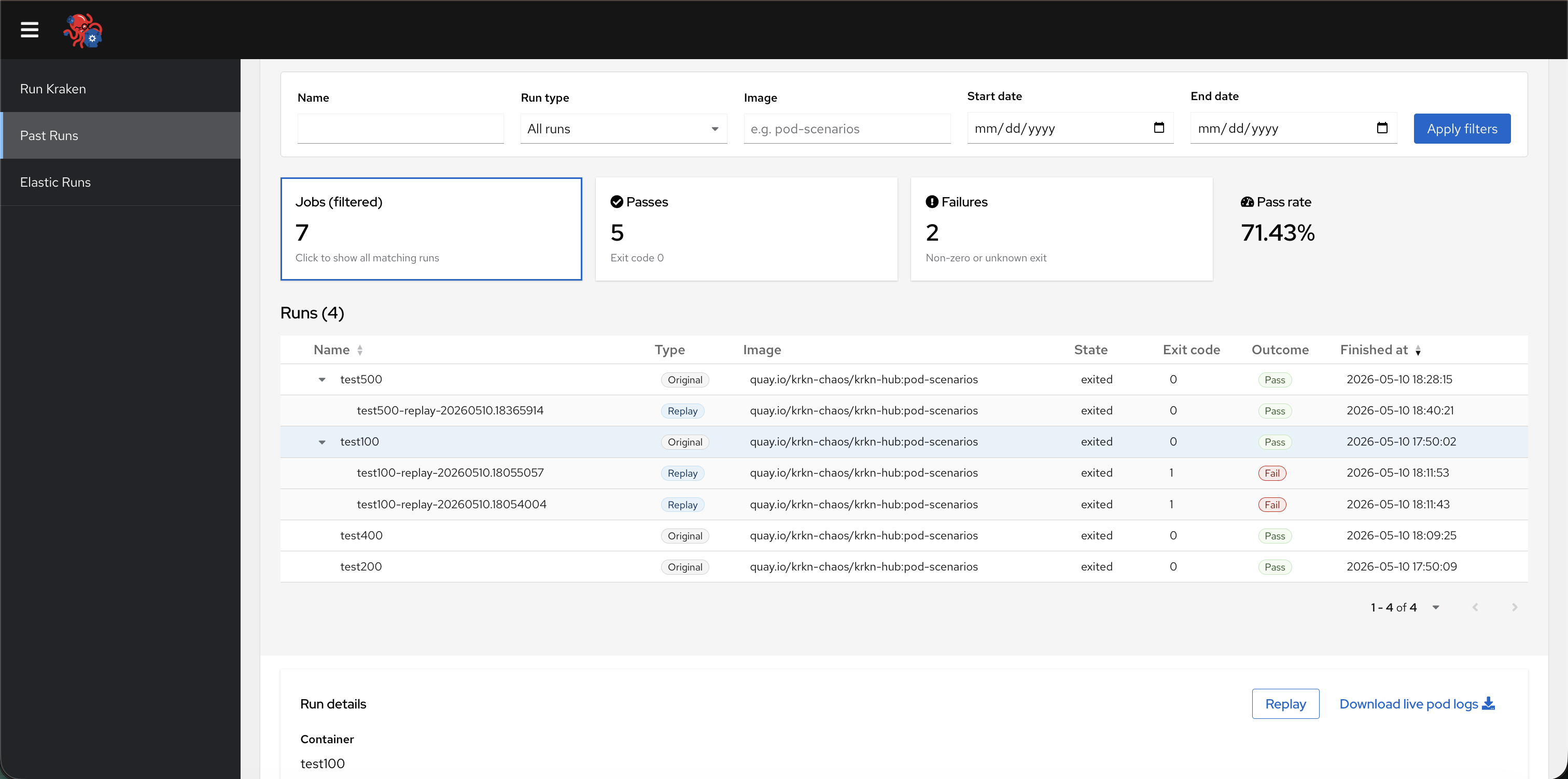
- Filters — Narrow by name, run type (all, original only, replay only), image substring, and start/end dates; use Apply filters and Refresh as needed.
- Summary cards — Examine the job count, passes, failures, and pass rate.
- Runs table — Sort by name or finished time. Expand or collapse rows that have replays to see nested replay entries. Select a row to open Run details and Logs. The Replay button pre-fills Run Kraken with the stored scenario parameters that were saved for that run.
Elastic Runs
Elastic Runs is for Elasticsearch and Grafana, separate from Past Runs:
- Not connected — A form titled Connect to Elastic Search asks for the ES instance URL, index name, optional username and password, and optional Grafana Base URL. Submit with Connect to the instance.
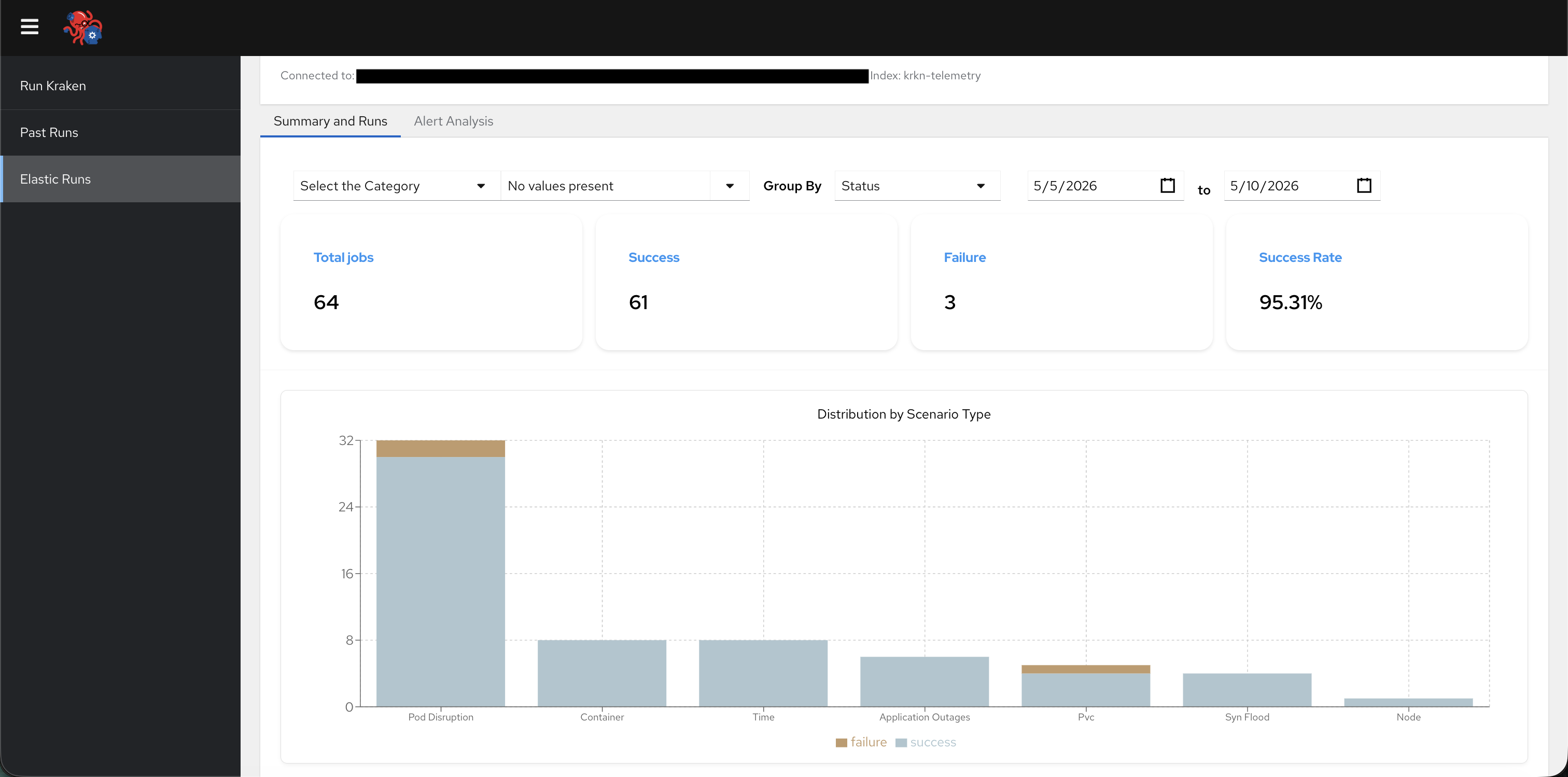
- Connected — The header shows the host (and index); use Disconnect to return to the connect form. Two tabs appear:
- Summary and Runs — Summary metric cards when aggregations are available, charts (summary or comparison layout depending on filters), and a Runs table of documents from Elasticsearch. Expand a row to see its configuration and graphs. If a Grafana base URL was set, a link will appear to open a Grafana dashboard with a breakdown of that scenario’s data.
- Alert Analysis — A table of alerts when alert data is present.
Grafana opens pre-built dashboards for individual chaos runs; those links are produced through krkn visualize. Your grafana link may look something like “http://krkn-visualize-krkn-visualize . . . openshift.com/”.
Account Settings
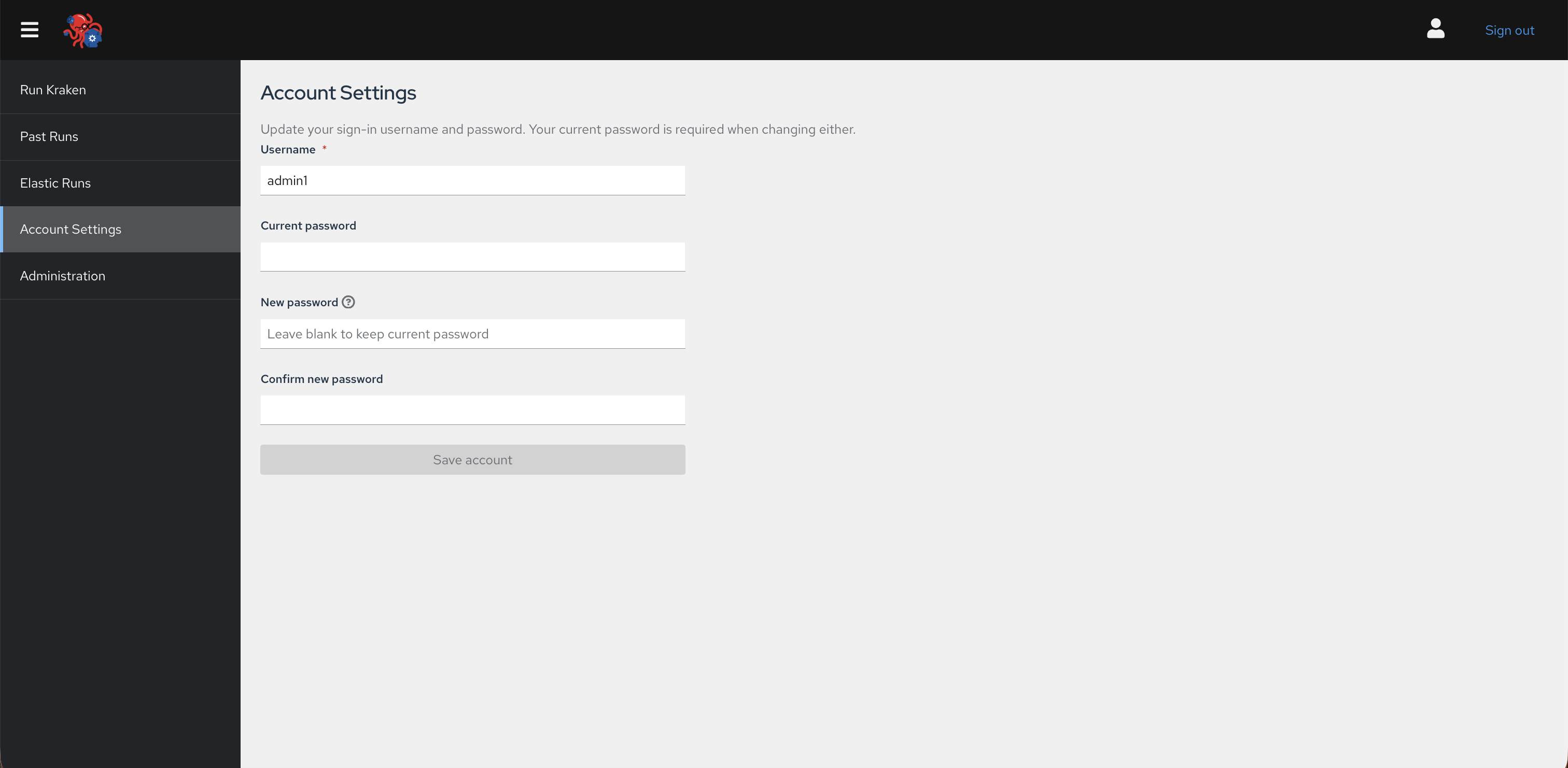
Account Settings is available to every signed-in user from the side menu. Platform admins use it for their own profile; platform users also use it to upload kubeconfigs for their groups.
Username and password
At the top of the page you can update your sign-in username and password:
- Username — Required. Change it if you need a different sign-in name.
- Current password — Required whenever you change the username or set a new password.
- New password and Confirm new password — Leave blank to keep your current password. When you set a new password, it must be at least 8 characters and match the confirmation field.
Administration (platform admins)
Open Administration from the side menu to:
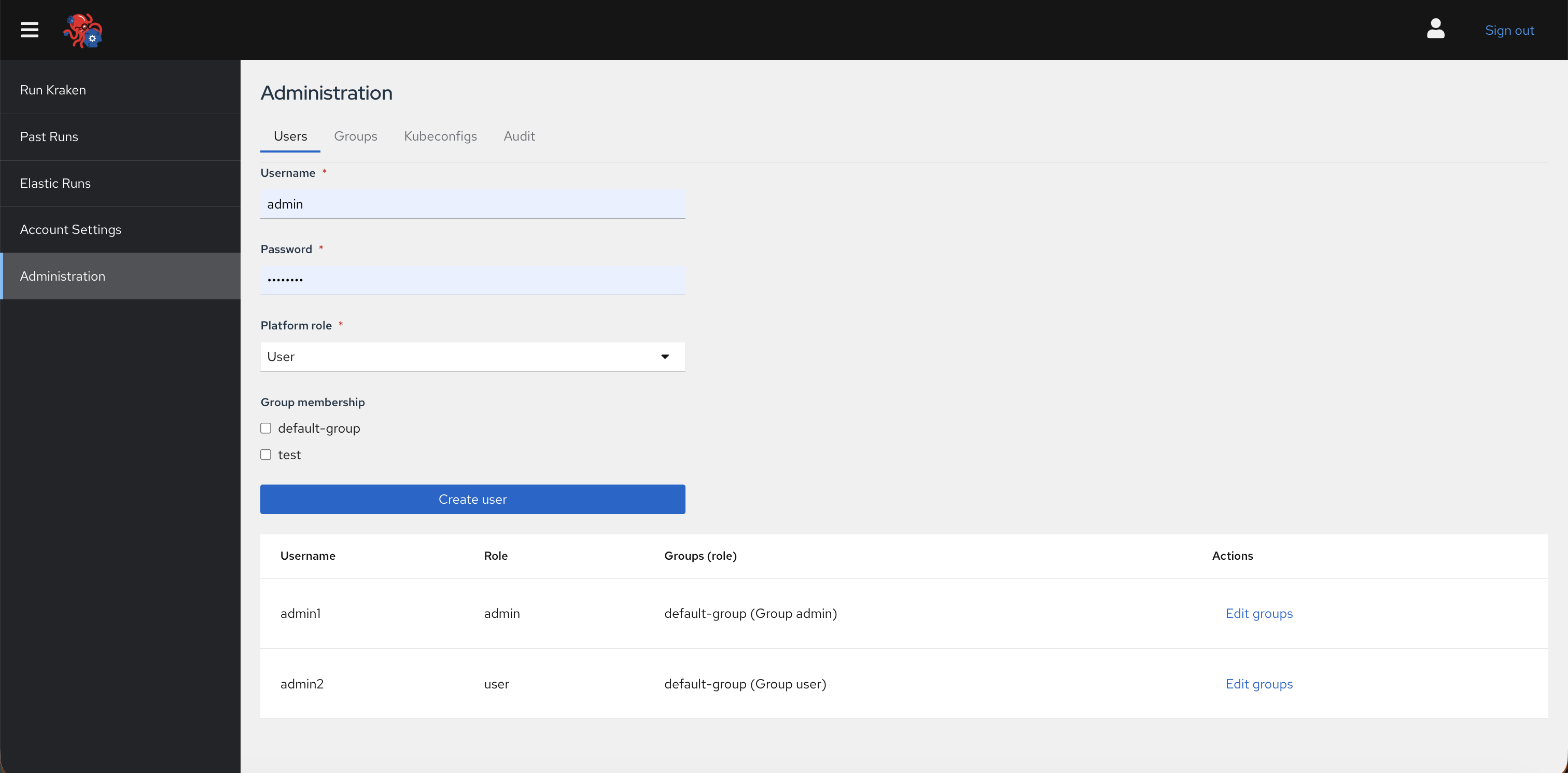
- Users — Create users, set platform role (Admin or User), and assign group memberships with group roles. Required fields are marked.
- Groups — Create groups, open a group to manage its policies and membership, or delete a group.
- Kubeconfigs — Upload kubeconfigs on behalf of groups (platform-wide management).
- Audit — View the audit trail for actions across users.
When creating a platform User, you can only assign group user or group viewer roles—not group admin. Platform Admin accounts may also be group admin in selected groups.
See Users, groups, and access control for the full role and permission model.