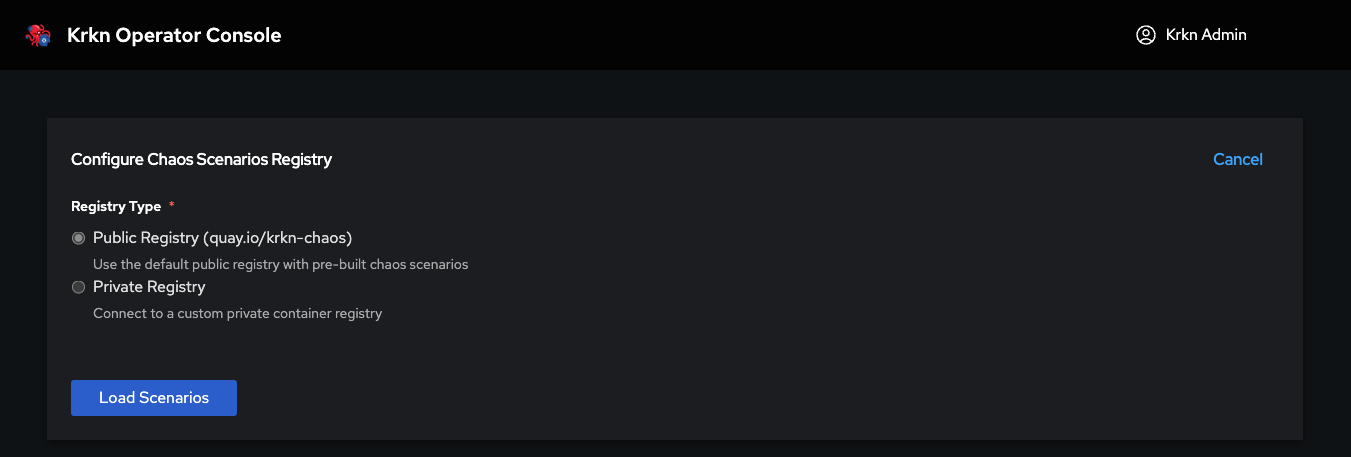
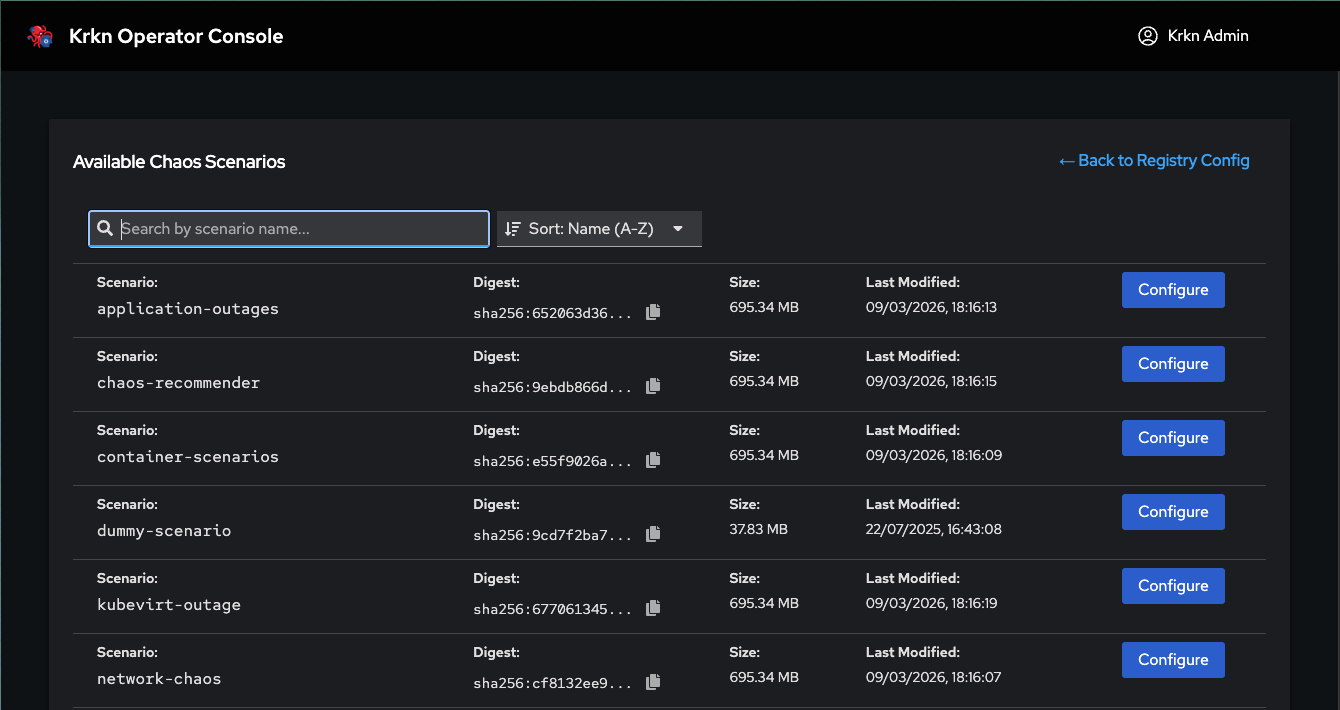
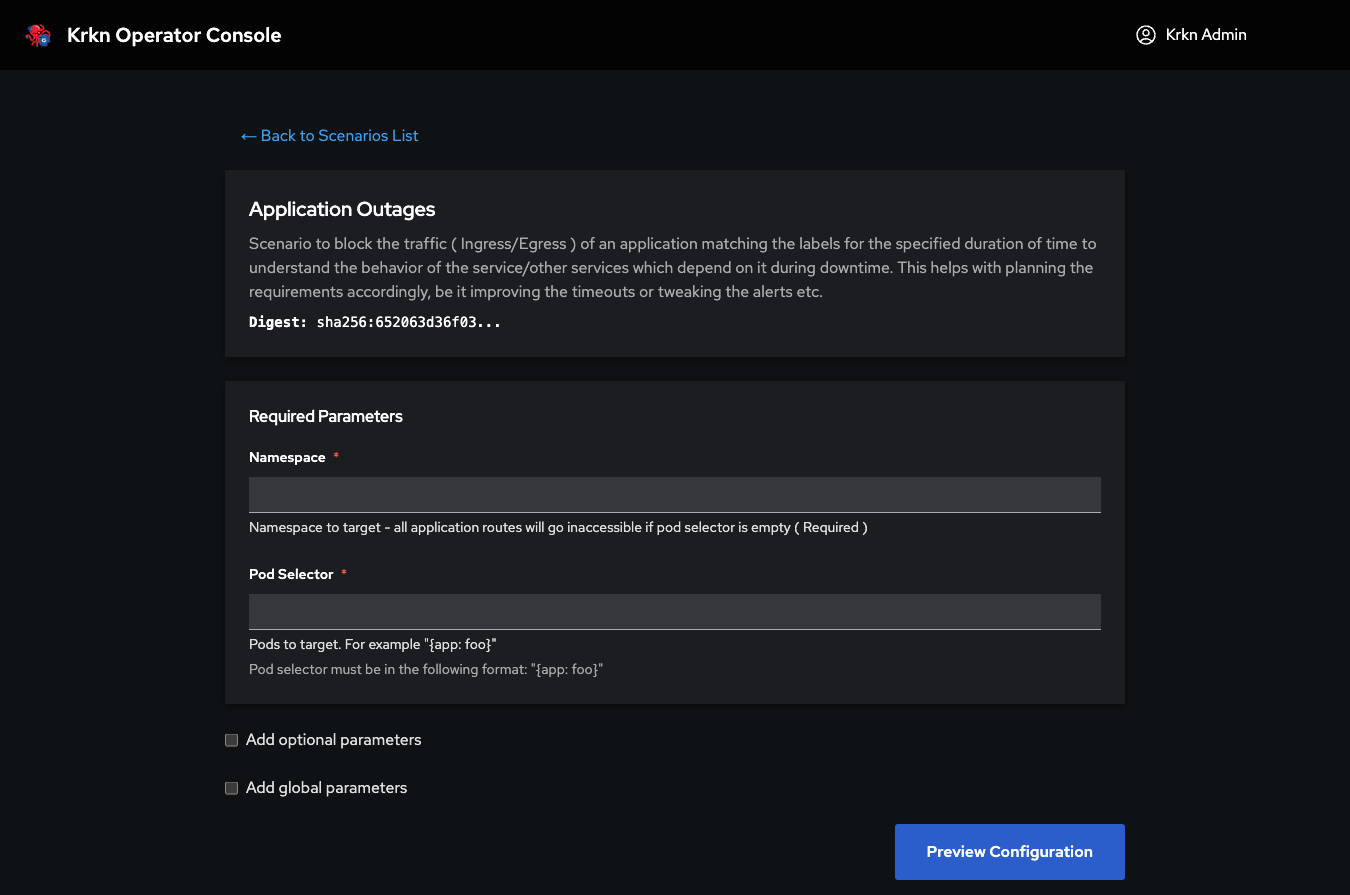
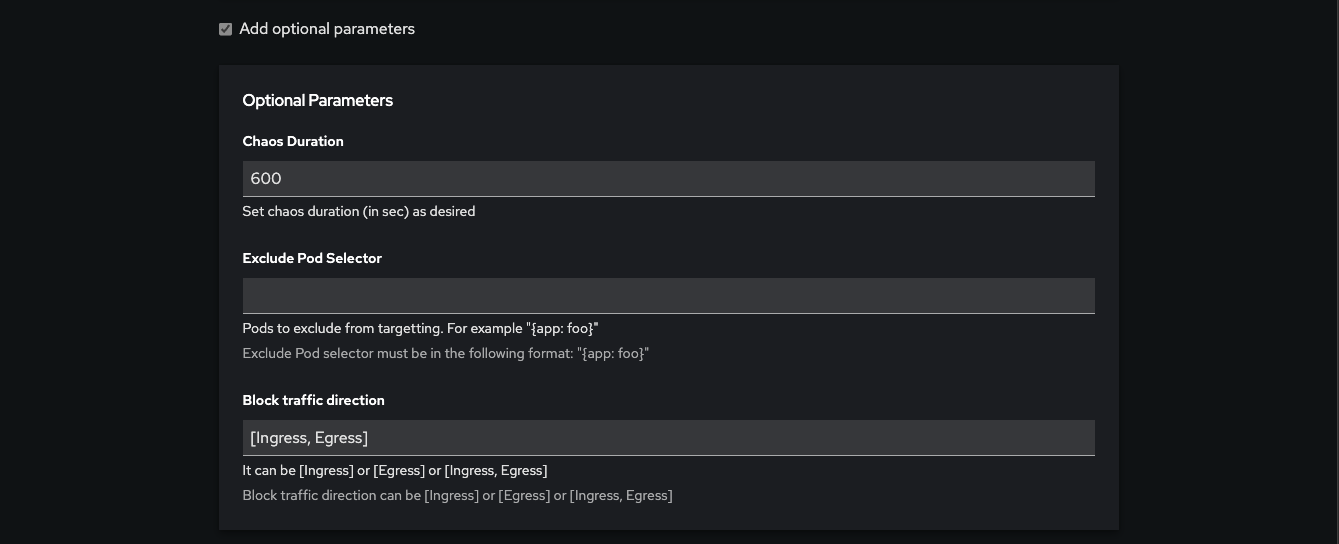
Krkn Operator is a Kubernetes-native platform to deploy, configure and orchestrate Chaos Engineering experiments through a web console. Instead of manually executing scenarios, the Operator provides a complete platform to manage users, clusters, permissions and experiment execution from a single place.
Multi-Cluster Chaos Testing
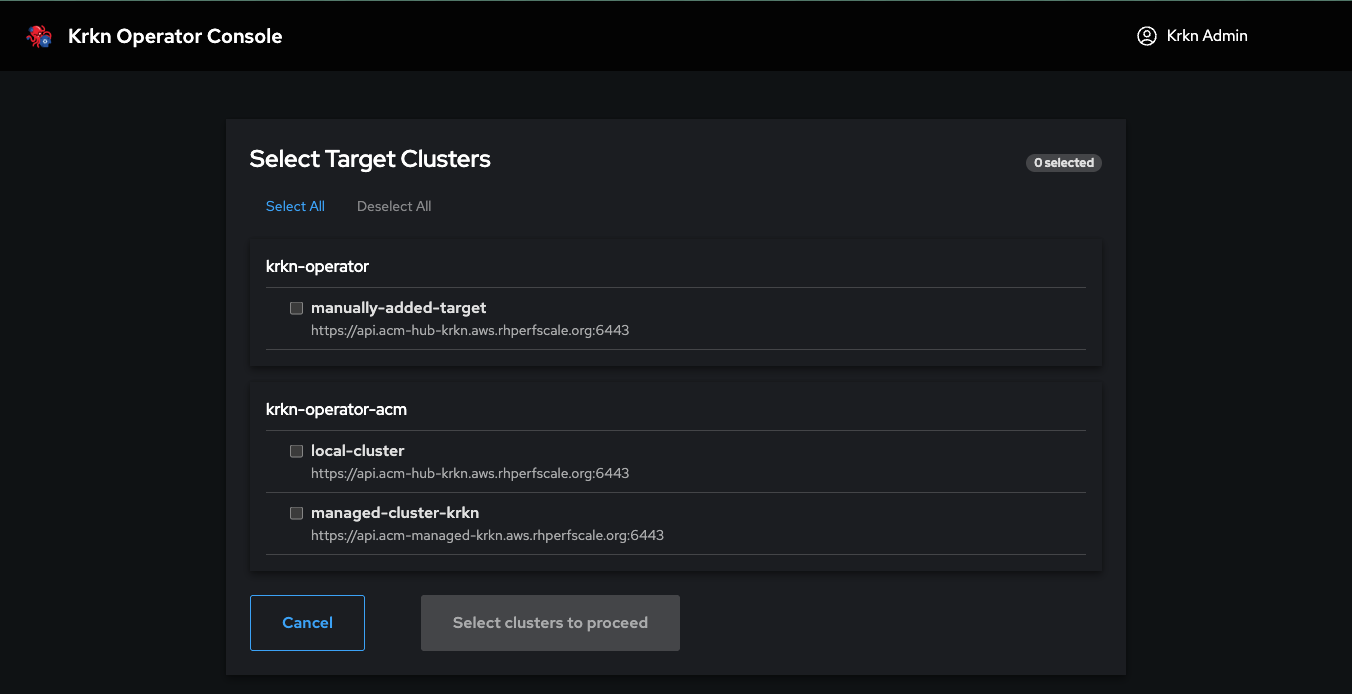
Multi-cluster execution is a core capability of the platform. Every chaos scenario can target one or more clusters simultaneously, regardless of how those clusters were registered:
Manual targets — clusters registered directly by an administrator through the web console
OCM/ACM discovery — clusters discovered automatically through Open Cluster Management or Red Hat Advanced Cluster Management
Both methods produce the same unified cluster pool. When executing a scenario, users select any combination of available targets and the platform runs the experiment in parallel across all of them. This enables cross-environment resilience testing (dev, staging, production), regional failover validation, and multi-tenant chaos campaigns — all from a single execution.
INFO
Multi-cluster is always available. OCM/ACM integration is optional and adds automatic cluster discovery, but multi-cluster execution works identically with manually registered targets. No external cluster management platform is required.
Personas
The platform defines two roles with different access levels.
Admin
Full access to the platform. Administrators configure the infrastructure that users operate on.
Register and remove target clusters
Create groups with cluster access and permissions
Create users and assign them to groups
Configure private registries and their visibility
Configure target providers (e.g. ACM integration)
All operational features available to users
User
Operational access scoped by group membership. Every user must belong to a group — the group determines which clusters, registries and features are accessible.
View and manage jobs (based on View/Cancel permissions)
Use the cluster terminal (requires Run permission)
Run scenarios on assigned clusters (requires Run permission)
Design workflows in Chaos Studio (requires Run permission)
Upload and manage files (scoped by group visibility)
INFO
Users only see jobs from their own group. A cluster-wide indicator shows the names of running scenarios across all groups, but no details.
Permission Model
        Admin
          │
    Creates Groups
          │
    ┌─────┴──────┐
    │             │
  Group A      Group B
    │             │
  Clusters     Clusters
  Permissions  Permissions
  (View,Run,   (View)
   Cancel)
    │             │
  Users        Users
Permissions are assigned at the group level and determine what users can do on clusters accessible to their group.
View
View
Allows users to see jobs and their execution results. Users with this permission can inspect single run outcomes, console logs, graph run nodes, and Resiliency Scores — but cannot execute, cancel or remove anything.
Allows users to execute chaos experiments on the clusters assigned to their group. This includes running single scenarios, designing and executing Chaos Studio workflows, and accessing the cluster terminal for read-only inspection.
Allows users to cancel running scenarios and to remove scenario runs and their execution history. Without this permission, jobs remain visible but cannot be cancelled or removed.
OpenShift Security: The chart automatically detects OpenShift and configures the required Security Context Constraints (SCC). No manual SCC configuration is needed.
Administrators configure the platform infrastructure that users operate on. This includes registering clusters, managing users and groups, setting up private registries and configuring target providers.
Permission Model
The Admin creates groups that define what users can do on the platform. Each group specifies:
Which clusters are accessible
Which permissions are granted (View, Run, Cancel)
Which registries are visible
Users inherit all permissions from their assigned group.
Admin creates Group
      │
      ├── Assigns Clusters (target-1, target-2, ...)
      ├── Assigns Permissions (View, Run, Cancel)
      └── Assigns Registry Visibility
            │
            └── Users in this group inherit everything
INFO
Every user must belong to a group. A user without a group has no access to the platform.
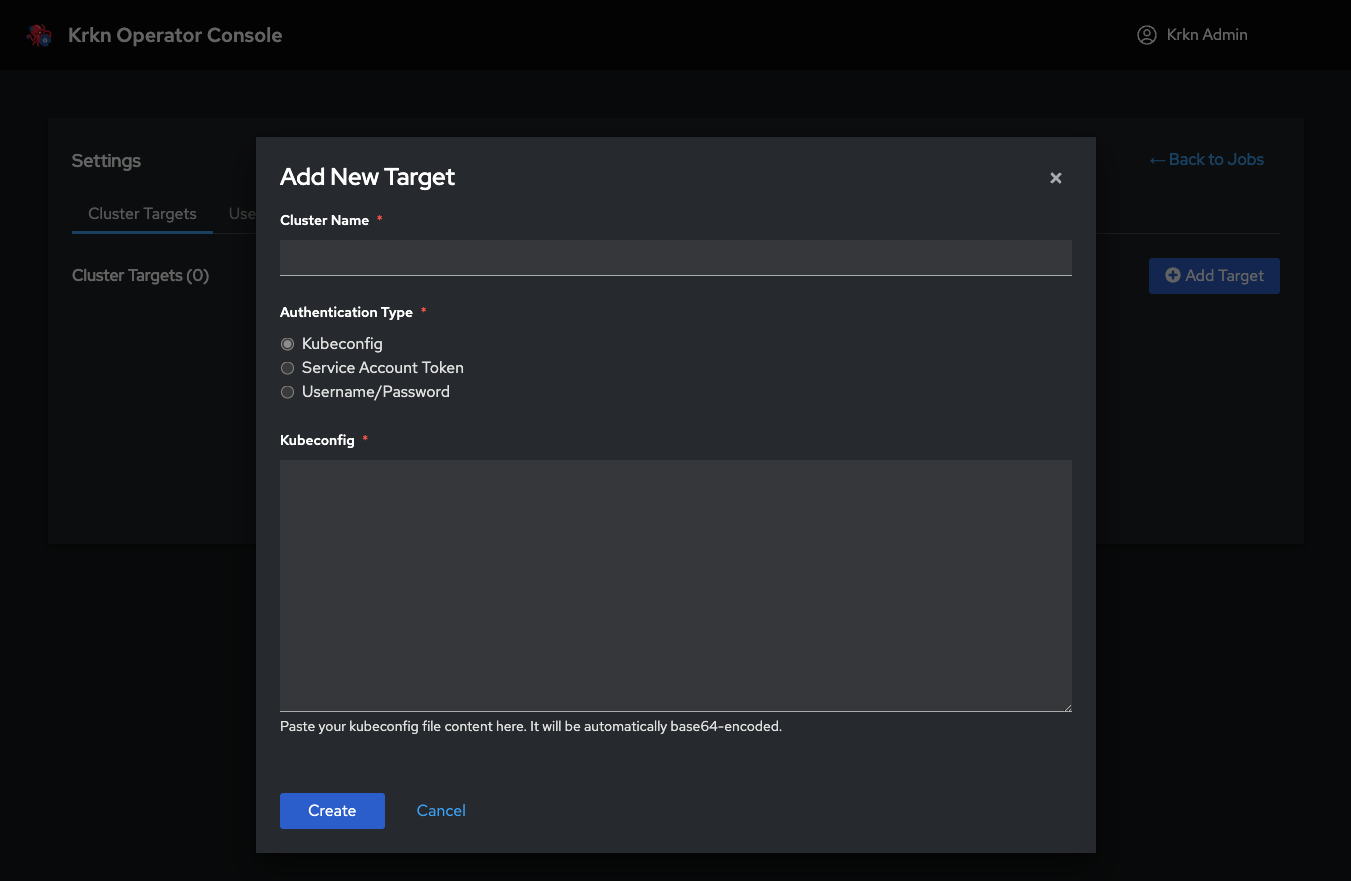
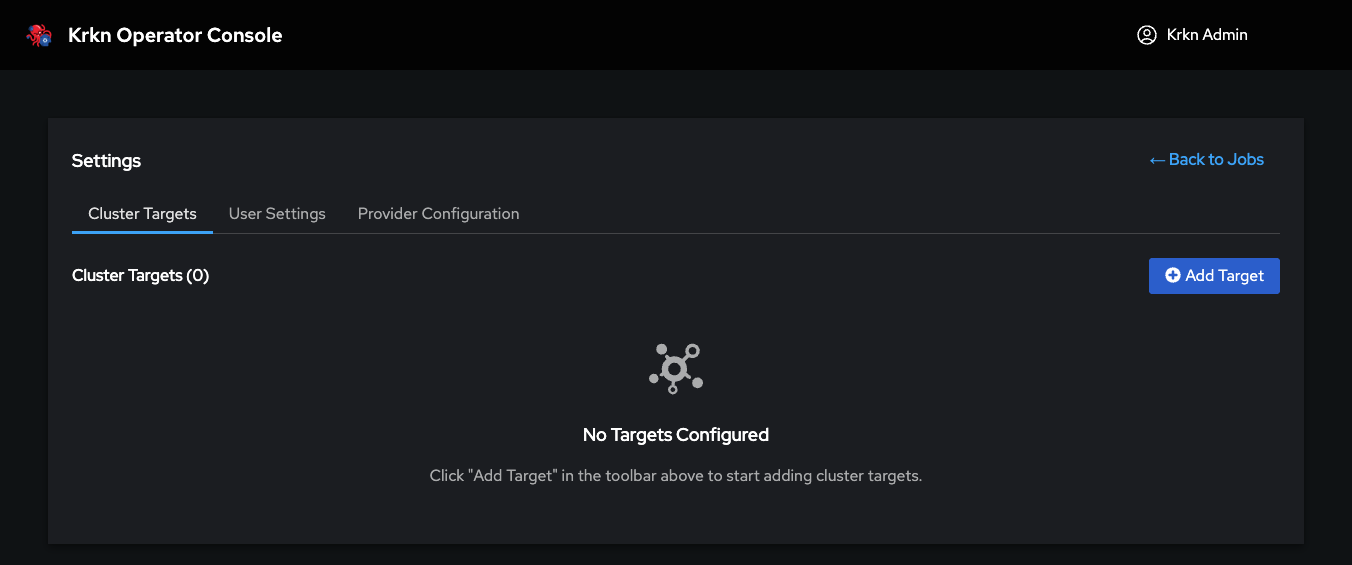
Register target Kubernetes clusters that will be available for chaos scenario execution. The operator runs on a control plane cluster and executes scenarios against registered targets — it never runs chaos against itself.
Operations
Operation
Description
Add Cluster
Register a new target cluster by providing its name and kubeconfig
View Clusters
Browse all registered clusters and their status
Delete Cluster
Remove a cluster from the platform
Once registered, clusters become available for assignment to groups through User Management.
Organize users through groups that define cluster access and permissions. The group is the central unit of the permission model — users inherit all capabilities from their assigned group.
Groups
A group defines what its members can access and do on the platform.
Field
Description
Name
Group identifier
Description
Purpose of the group
Cluster Permissions
Which registered clusters this group can target
Groups also receive permission flags that control what operations their members can perform:
Permission
What it grants
View
View jobs and execution results
Run
Execute scenarios, use Chaos Studio, access cluster terminal
Cancel
Cancel running jobs, and remove jobs and execution history
Users
Users are created and assigned to a group during creation.
Field
Description
User Data
Username, credentials
Group
The group this user belongs to
INFO
Group assignment is mandatory. Every user must belong to exactly one group. A user cannot be created without selecting a group. The group determines which clusters the user can target and which operations they can perform.
Permission Cascade
Group "SRE Team"
  ├── Clusters: production-us, production-eu
  ├── Permissions: View, Run
  └── Members: alice, bob
        │
        ├── alice → can run scenarios on production-us, production-eu
        └── bob   → can run scenarios on production-us, production-eu
2.3 - Registry Management
Configure private container registries and visibility
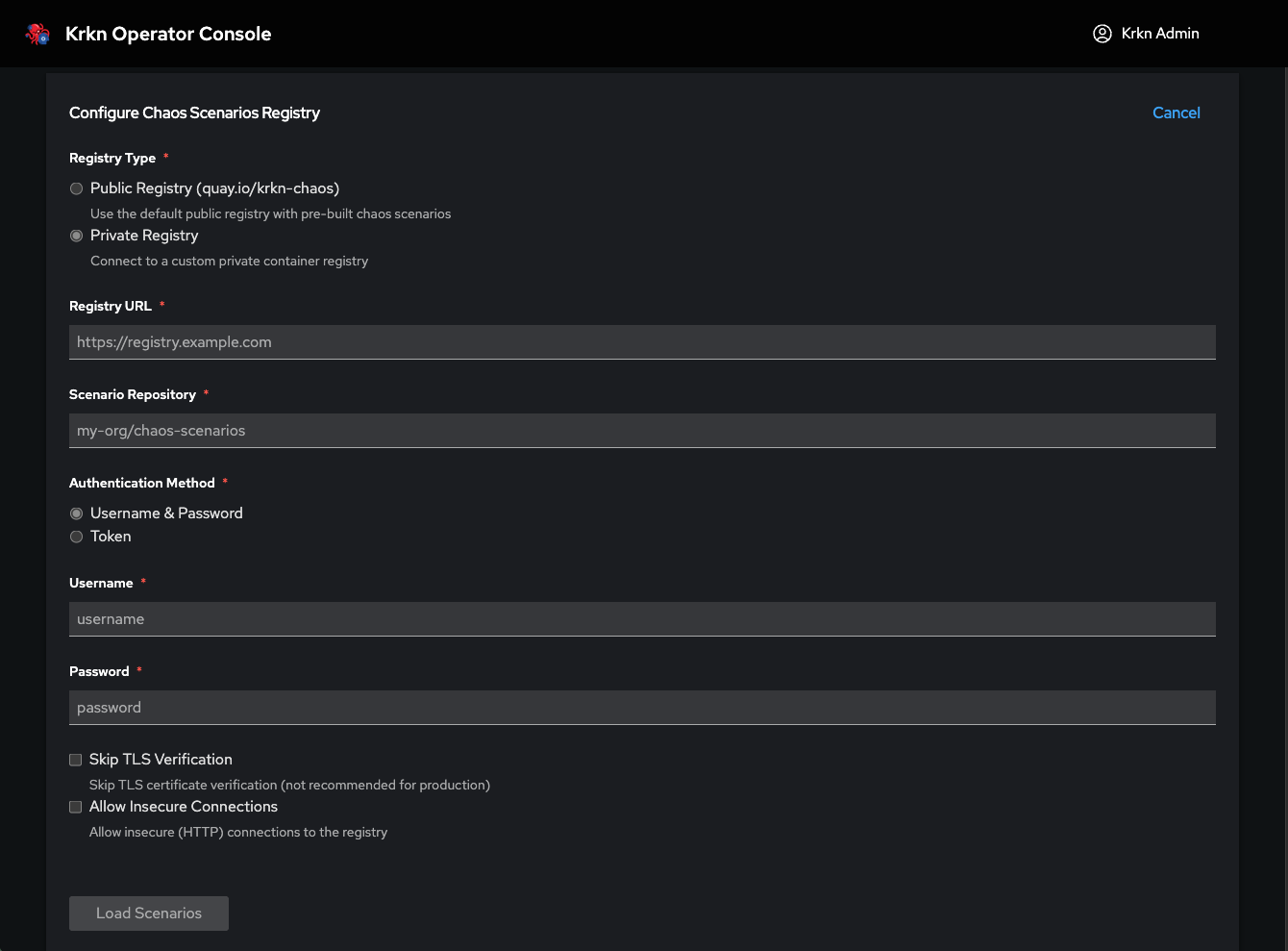
Configure private container registries for chaos scenario images and control which groups can access them. By default, scenarios are pulled from the public Quay.io registry. Private registries enable air-gapped deployments and custom scenario images.
Creating a Private Registry
Configure a private registry by providing its connection settings (URL, credentials, TLS configuration).
Visibility
Each registry has a visibility setting that controls who can use it:
Visibility
Description
Everyone
All users on the platform can select this registry
Group-based
Only users belonging to assigned groups can see and use this registry
Impact on Scenario Selection
When a user selects a private registry during scenario execution, only the scenarios that have been mirrored to that registry will be available. Scenarios not present in the private registry will not appear in the selection list.
INFO
Air-Gapped Environments: The operator uses OCI registry APIs for scenario metadata. A private registry configuration allows the platform to function completely in disconnected environments without external connectivity.
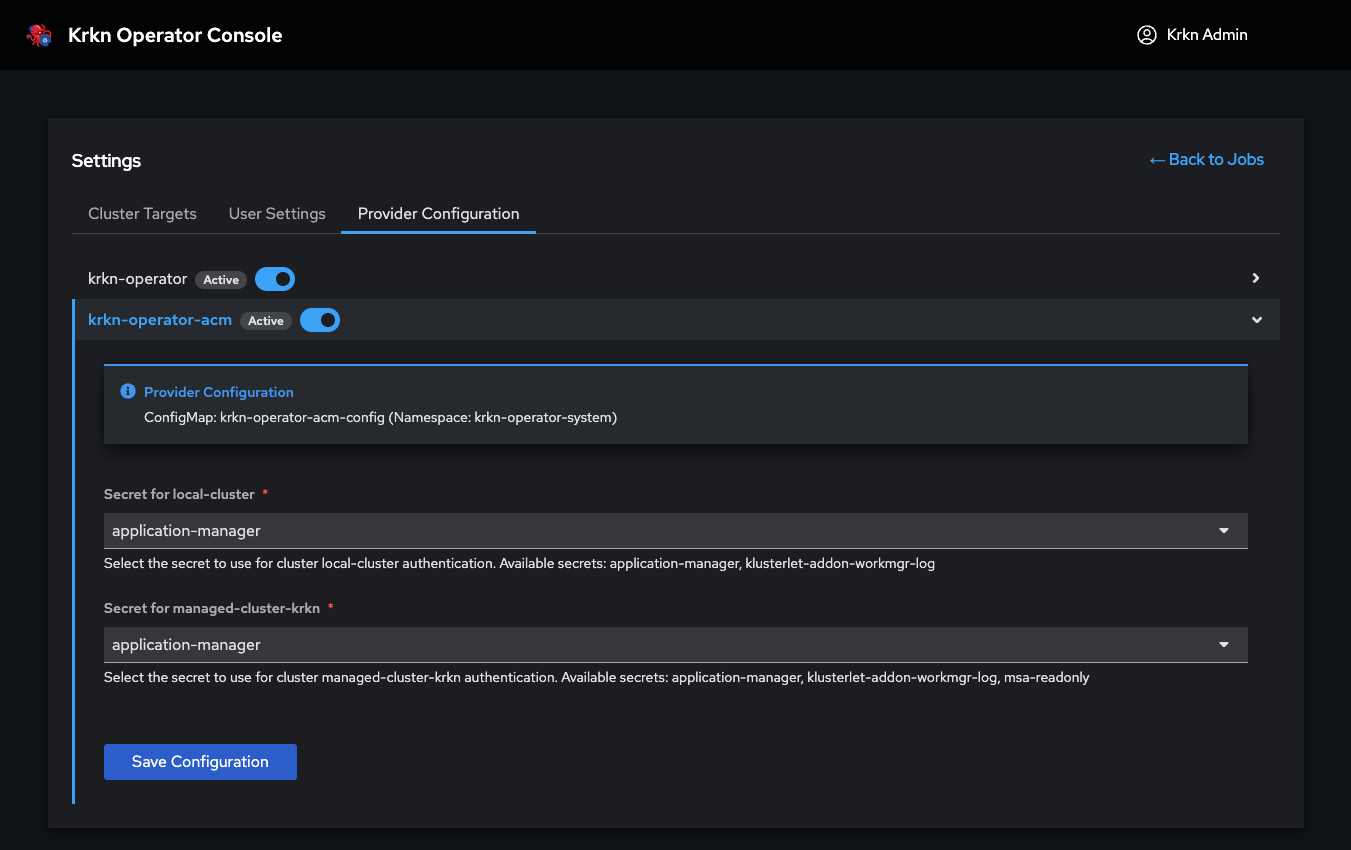
Configure target providers that integrate with external cluster management platforms. The provider configuration interface adapts dynamically based on the selected provider.
Supported Providers
Provider
Description
ACM / OCM
Automatically discover and synchronize managed Kubernetes clusters through Red Hat Advanced Cluster Management or Open Cluster Management
INFO
The provider configuration interface is designed to be extensible. As new integration operators are developed, their configuration panels will appear automatically in this section.
Cloud Provider Configuration
Some chaos scenarios interact directly with cloud infrastructure and require cloud provider credentials (AWS, GCP, Azure, OpenStack, etc.) to perform node-level operations. The following scenarios are not currently available in Krkn Operator until cloud provider configuration support is added:
Scenario
Why Cloud Provider Is Required
node-scenarios
Stops, terminates, or reboots nodes via the cloud provider API
node-scenarios-bm
Controls bare metal nodes via BMC/IPMI credentials
power-outages
Shuts down and restarts the entire cluster through the cloud provider
zone-outages
Simulates availability zone failures by manipulating cloud network resources
INFO
Cloud provider configuration is not yet supported in Krkn Operator. The scenarios above cannot be executed until cloud provider credential management is introduced. This page will be updated when that support becomes available.
2.5 - Elasticsearch Management
Configure saved Elasticsearch endpoints for platform-wide observability
Administrators can configure and save Elasticsearch endpoints that users can reference when executing chaos scenarios. This enables centralized observability configuration without requiring users to manually enter connection details.
Overview
Elasticsearch integration allows krkn scenarios to index execution metrics, logs, and telemetry data for analysis and historical tracking. Instead of requiring each user to configure Elasticsearch details manually, admins can:
Pre-configure Elasticsearch endpoints with connection details
Save named configurations for reuse across all scenarios
Control which Elasticsearch endpoints are available platform-wide
Users can then select from the saved Elasticsearch configurations when setting global parameters during scenario execution.
INFO
Users can select saved Elasticsearch configurations but cannot add new ones. Only admins have permission to create, edit, or delete Elasticsearch endpoints.
Adding an Elasticsearch Endpoint
Navigate to Administration > Elasticsearch Management
Click Add Elasticsearch
Configure the following details:
Field
Description
Required
Name
Friendly name for this configuration (e.g., “Production ES”, “Dev Cluster”)
Index name or pattern for storing krkn data (e.g., krkn-chaos-*)
Yes
Username
Authentication username (if required)
No
Password
Authentication password (if required)
No
Verify SSL
Whether to verify SSL certificates (toggle)
Yes
Click Save to add the configuration to the saved list
Managing Saved Configurations
View Saved Elasticsearch Endpoints
The Elasticsearch Management page displays all saved configurations:
Name: Friendly identifier shown to users
URL: Elasticsearch endpoint
Index: Target index pattern
Actions: Edit or Delete options
Edit an Endpoint
Click the Edit icon next to the saved configuration
Modify any field (Name, URL, Index, credentials, SSL verification)
Click Save to update
INFO
Editing a saved Elasticsearch configuration affects all scenarios currently using it. Changes apply to future scenario executions immediately.
Delete an Endpoint
Click the Delete icon next to the saved configuration
Confirm the deletion
INFO
Deleting an Elasticsearch configuration does not affect running scenarios, but it will no longer be available for selection in new scenario executions.
How Users Select Elasticsearch
When users configure global parameters for a scenario or workflow, they can:
Expand the Global parameters section
Locate the Elasticsearch parameter
Click the dropdown to view all saved Elasticsearch configurations
Select an Elasticsearch endpoint by name (e.g., “Production ES”)
The selected configuration automatically applies the admin-defined connection details (URL, index, credentials) to the scenario execution.
Users cannot:
Add new Elasticsearch endpoints from the scenario configuration interface
Edit existing saved configurations
View sensitive details like passwords (only admins can see/edit credentials)
Users can:
Choose from the dropdown list of saved Elasticsearch endpoints
Opt not to use Elasticsearch (by leaving the parameter unset)
Best Practices
Naming Conventions
Use descriptive names that indicate the purpose or environment:
✅ Production Observability
✅ Staging Metrics
✅ Dev Team Shared ES
❌ ES1, Elasticsearch, Test
Security
Use dedicated credentials for krkn with limited write permissions to specific indices
Enable SSL verification for production endpoints
Restrict index patterns to prevent accidental data overwrites (e.g., krkn-* not *)
Index Patterns
Use time-based or scenario-based index naming:
krkn-chaos-{YYYY-MM-DD} — daily indices for easy retention management
krkn-scenarios-* — scenario-specific index pattern
krkn-{environment}-* — environment-specific indices
After adding an Elasticsearch endpoint, verify it works:
Run a simple chaos scenario with the Run Scenarios feature
Select the saved Elasticsearch configuration in Global parameters
Execute the scenario
Check the Elasticsearch index for new documents:
curl -X GET "https://elasticsearch.example.com:9200/krkn-chaos-*/_search?pretty"\
-u username:password
Successful indexing confirms the configuration is correct and accessible from the krkn-operator platform.
3 - Usage
Operational features for running chaos experiments
Usage
The operational features of Krkn Operator are available to all users, scoped by the permissions assigned to their group. This section covers the day-to-day workflow: running scenarios, designing workflows, monitoring jobs and managing files.
Users only see data from their own group. A cluster-wide indicator shows the names of currently running scenarios across all groups, but without details.
Features
Jobs — Monitor and inspect scenario execution results
Cluster Terminal — Explore target clusters with read-only commands
The Jobs list is the home screen of the platform. It displays all scenario executions for your group, with real-time status updates and access to logs and results.
Run Types
Single Run
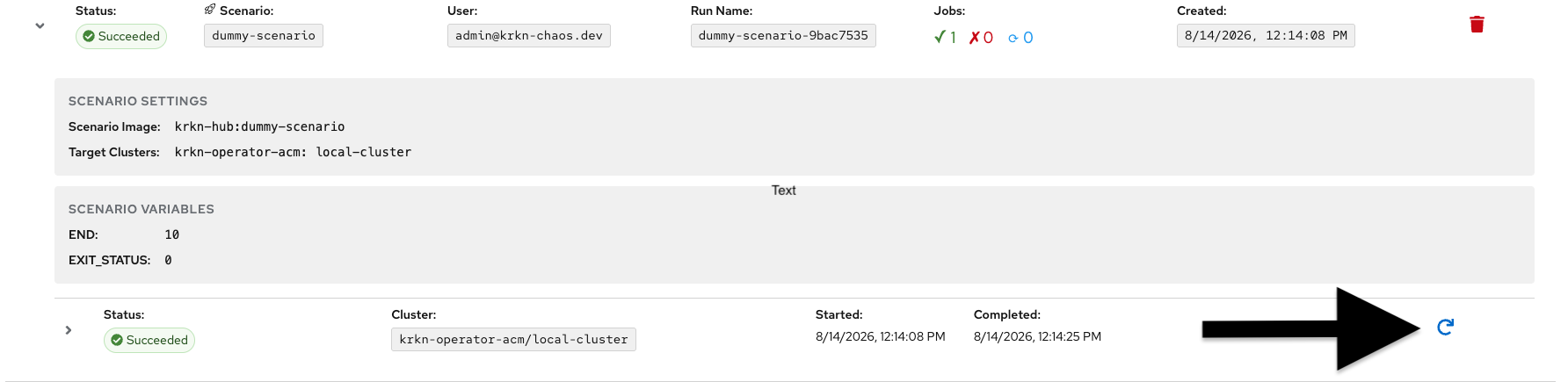
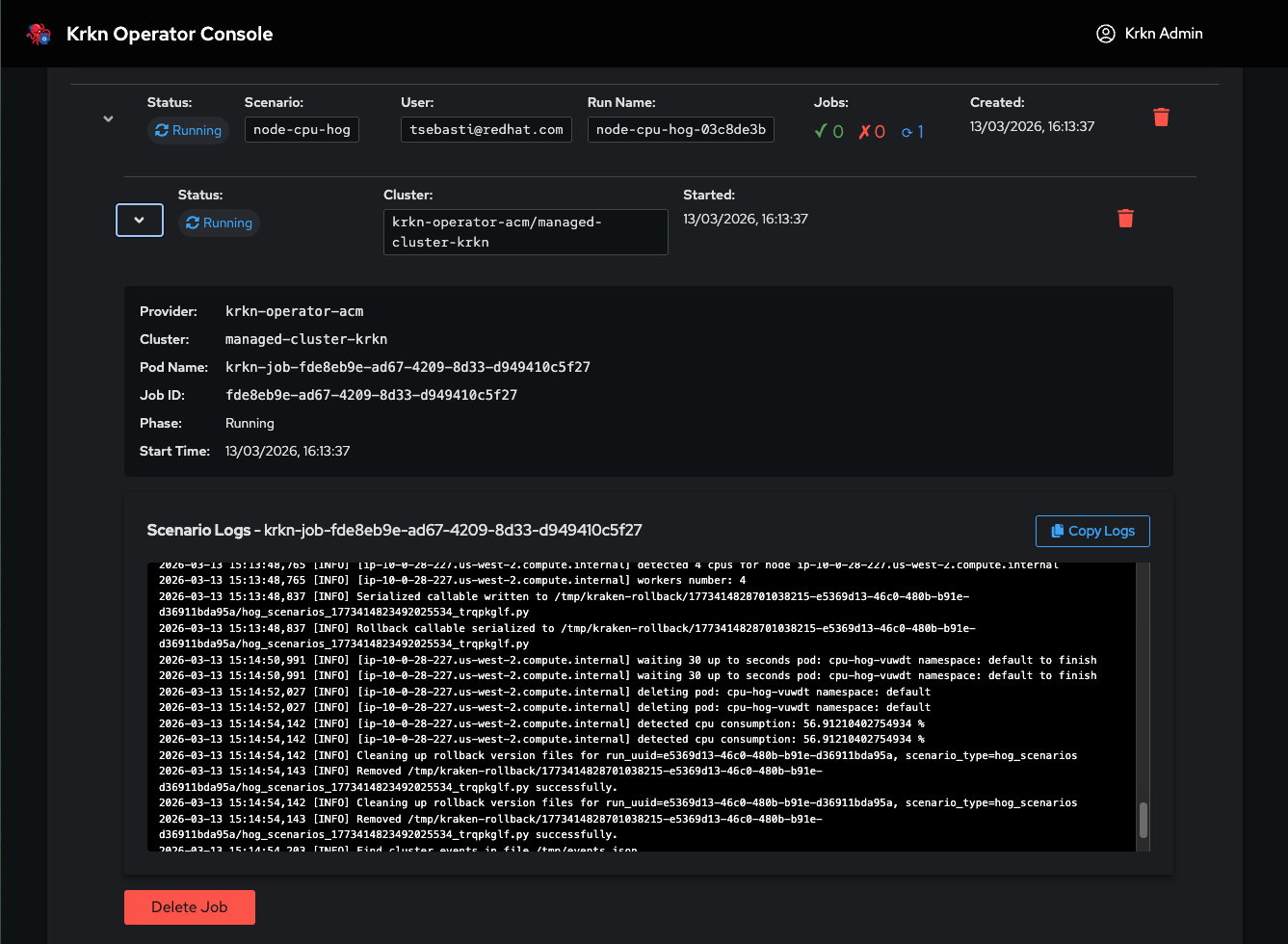
A single scenario execution on one or more target clusters. For each run you can inspect:
Execution outcome (success, failure)
Console logs of the krkn pod that executed the scenario
Replay & Edit
Single runs can be replayed to re-execute the same scenario with the same configuration. You can also edit the details before replaying to modify:
Target cluster(s)
Scenario parameters
Configuration values
Run Name
This allows you to quickly iterate on chaos experiments or run the same test across different environments.
Graph Run (Chaos Studio)
A workflow execution created through Chaos Studio. The execution is displayed as a graph where each node represents an individual krkn scenario. For each node you can inspect the outcome and logs independently.
Graph runs can include a Resiliency Score — a calculated metric based on PromQL queries executed during the workflow. This score measures how well the target application withstood the chaos experiment.
INFO
Resiliency Score is a key differentiating feature of Krkn Operator. It transforms chaos experiments from pass/fail tests into quantitative resilience measurements. See Chaos Studio for details on configuring it.
Visibility & Permissions
Only jobs from your own group are displayed
A cluster-wide tip shows the names of scenarios currently running across all groups (no details)
Cancelling or removing jobs requires Cancel permission
A built-in terminal for exploring target clusters using read-only oc and kubectl commands. Useful for inspecting cluster state before, during or after chaos experiments.
Details
Read-only: only read commands are available — no modifications to the cluster are possible
Supported commands: oc and kubectl
Target selection: only clusters accessible to your group are available
Execute a chaos scenario on one or more target clusters through a guided step-by-step wizard. All scenarios can run simultaneously across multiple clusters.
Execution Flow
1. Select Target Clusters
Choose one or more clusters to run the scenario on. All selected clusters execute the scenario simultaneously.
2. Select Registry
Choose the container registry for scenario images:
Registry
Description
Public (Quay.io)
Default registry with all community scenarios
Private
Configured by admin, only mirrored scenarios available. Visibility controlled by group permissions
3. Select Scenario
Browse and select a chaos scenario from the chosen registry.
4. Configure Parameters
Each scenario defines its own parameter set, divided into three categories:
Category
Description
Mandatory
Must be configured before execution. Not all scenarios have them
Optional
Fine-grained control over scenario behavior (label selectors, timing, filters)
Global
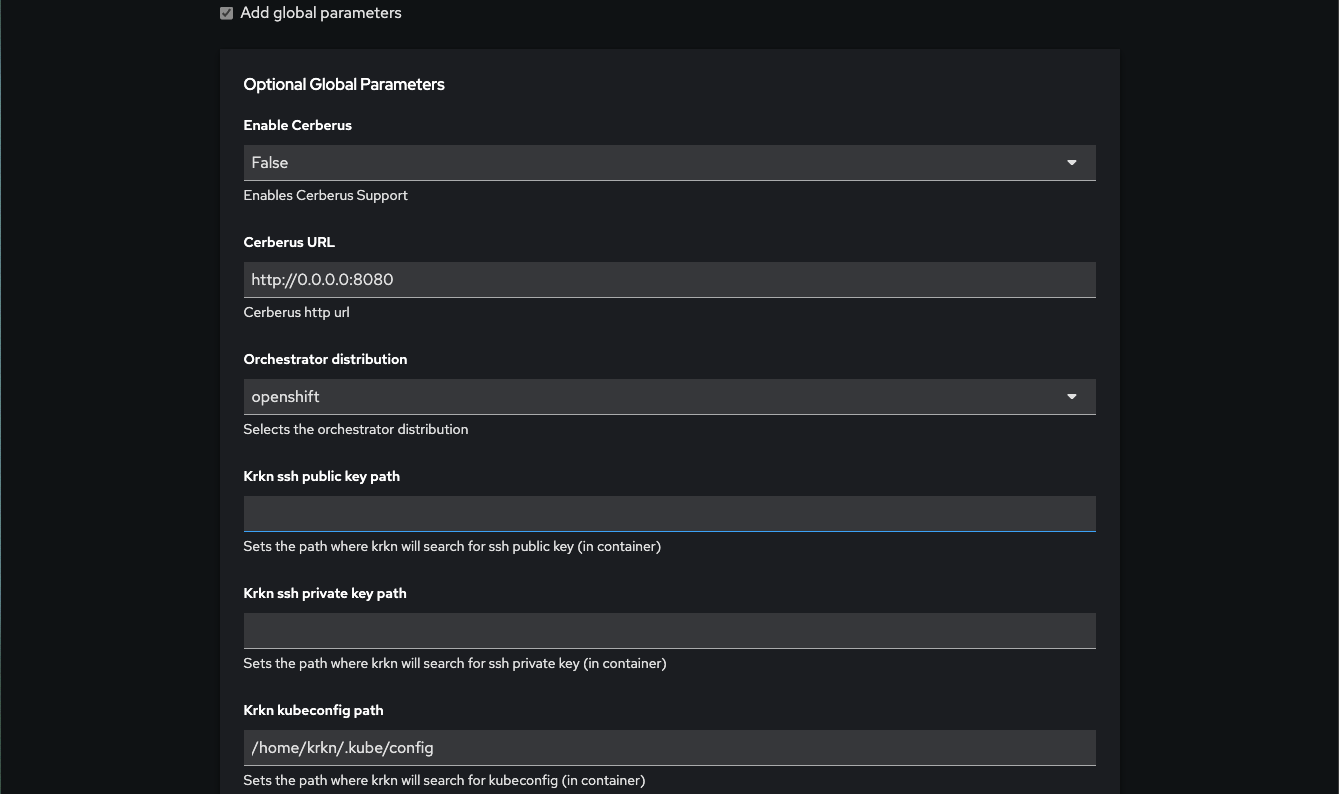
Framework-level settings (Elasticsearch, Prometheus, Cerberus integration). Applied only if modified from defaults
Elasticsearch in Global Parameters
When configuring Global parameters, you can select a saved Elasticsearch endpoint to index scenario metrics and telemetry:
Expand the Global parameters section
Locate the Elasticsearch dropdown
Select from available saved configurations (configured by your admin)
INFO
You can select from saved Elasticsearch configurations but cannot add new ones. Contact your administrator to add additional Elasticsearch endpoints.
Selecting an Elasticsearch configuration automatically applies connection details (URL, index, credentials) without requiring manual input.
5. Mount Files
Optionally attach configuration files previously uploaded through File Management. Files are available via a select dropdown.
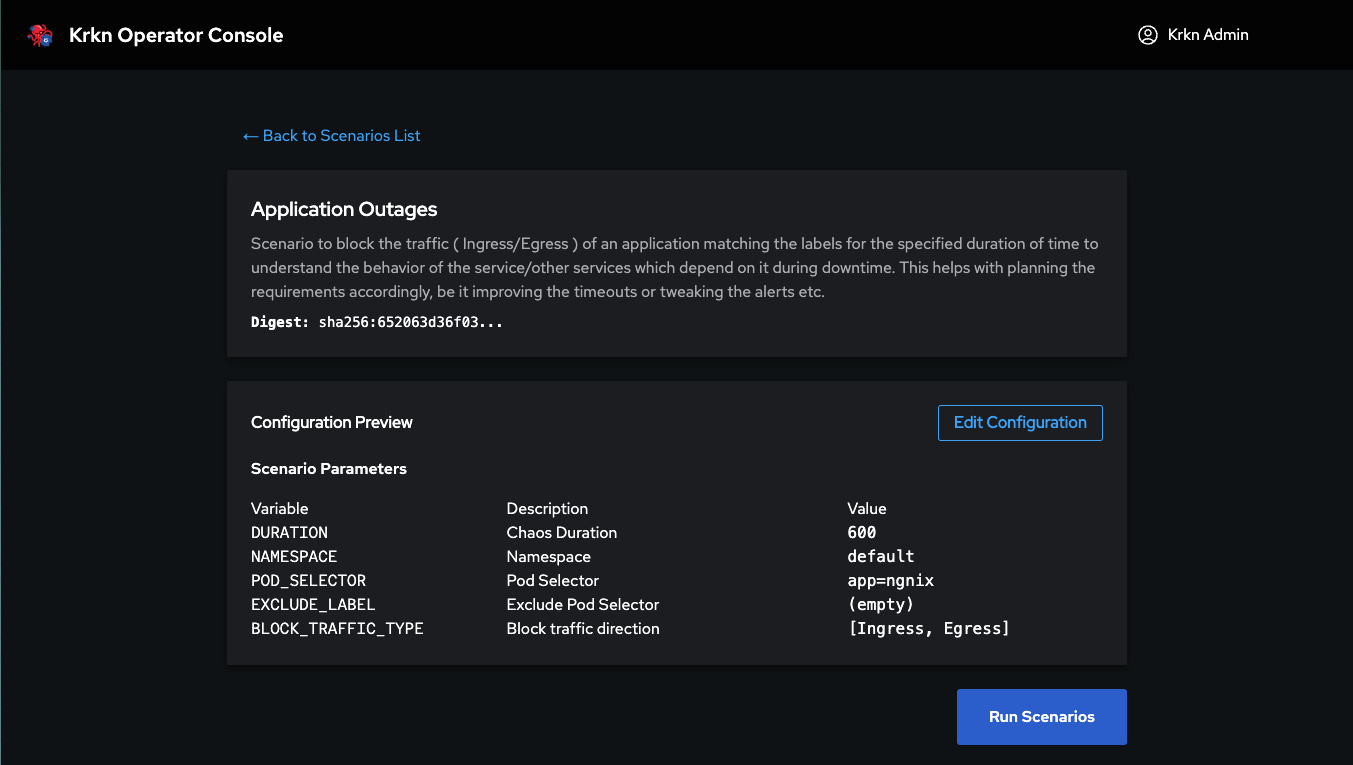
6. Preview
Review a summary of all configured parameters before execution.
7. Run
Launch the scenario. You are redirected to the Jobs page where you can monitor the execution in real time.
3.4 - Chaos Studio
Design visual chaos workflows with serial and parallel execution
A visual drag-and-drop editor for designing complex chaos workflows. Build graphs of scenarios that execute in series or parallel, and measure application resilience with the Resiliency Score.
Creating and Saving Workflows
Creating a New Workflow
Navigate to Chaos Studio from the main navigation
Click the “New Workflow” button to start a blank canvas
Give your workflow a meaningful name that describes its purpose
Adding Nodes
Click the “Add Node” button or drag from the node palette
Position nodes on the canvas by dragging them
Configure each node by clicking on it and selecting:
Registry: Choose your scenario source
Scenario: Select the chaos scenario to run
Parameters: Set mandatory and optional parameters
Files: Mount any required configuration files
Connecting Nodes
Click and drag from a node’s output port to another node’s input port to create dependencies
Serial execution: connect nodes in a chain (A → B → C)
Parallel execution: connect one node to multiple targets (A → B and A → C)
Saving Your Workflow
Click the “Save” button in the top toolbar
The workflow is automatically saved to your workspace
Saved workflows appear in the Chaos Studio workflow list
You can edit saved workflows by selecting them from the list
Video Walkthrough
Visual Editor
Nodes represent individual krkn scenarios
Arrows define execution order — connect nodes to create dependencies
Serial execution: chain nodes sequentially with single arrows
Parallel execution: branch from one node to multiple targets
Drag and drop to arrange the workflow visually
Node Configuration
Each node is configured exactly like a single scenario: select a registry, choose a scenario, set mandatory/optional/global parameters, and mount files.
Global Parameters in Workflows
When configuring global parameters for workflow nodes:
Elasticsearch: Select from saved admin-configured endpoints to index metrics across the entire workflow
Prometheus: Configure Prometheus integration for metric collection
Cerberus: Enable cluster health monitoring during scenario execution
INFO
Configure Elasticsearch in global parameters to track metrics across all nodes in a workflow. This provides centralized observability for complex multi-scenario executions.
Clone: duplicate a configured node to repeat the same scenario multiple times within the workflow.
Validation
The editor validates the workflow before execution:
Configured nodes: green arrows and connections — ready to execute
Unconfigured nodes: red arrows and red node border — must be configured before the workflow can run
Only fully configured nodes can be connected and executed.
Resiliency Score
INFO
Resiliency Score quantifies how well your application withstood a chaos workflow. Instead of a simple pass/fail, you get a numeric score based on real application metrics.
Enable the Resiliency Score on a workflow to measure application resilience:
Enable the resiliency score option on the workflow
Mount a PromQL file — a special file containing PromQL queries uploaded via File Management
Queries execute during the workflow and their results contribute to the final score
View the score in the Jobs page alongside the graph run results
The PromQL file defines which metrics to evaluate (latency, error rate, throughput, etc.) and their expected thresholds. The score reflects how closely the application maintained its expected behavior under chaos.
3.5 - File Management
Upload and manage reusable configuration files
File Management
Upload and manage text-based configuration files that can be used across scenario executions and Chaos Studio workflows.
Uploading Files
Files are created by pasting content into the text input box — there is no file upload button.
Elasticsearch views (summary charts, metric views, and alerts)
Signed krkn-hub images
Operator Backup/Restore
Krkn AI
Release Cadence
Krkn Operator aims to deliver feature releases every 6–8 weeks. These releases may include new features, enhancements, usability improvements, and other roadmap items driven by community feedback and contributor activity.
The release cadence is intended to balance rapid delivery of value to users while maintaining stability and quality across supported environments.
Feature Requests and Roadmap
Community feedback plays a key role in shaping the future of Krkn Operator.
Feature requests submitted through GitHub issues, enhancement proposals, community discussions, and feedback forms are reviewed regularly and considered as part of the project roadmap.
Features are prioritized based on:
Community interest
User impact
Project goals
Contributor capacity
Planned enhancements and major initiatives will be communicated through project documentation, GitHub, community meetings, and release notes.
Bug Fixes and Security Updates
Bug fixes and security updates are prioritized independently of the feature release cadence.
Critical security vulnerabilities and high-impact issues may be addressed through patch or minor releases outside the normal release cycle when necessary.
Community contributions for bug fixes, testing, and validation are always welcome.
Release Notes
Each release includes documentation for:
New features and enhancements
Bug fixes
Security updates
Compatibility updates
Breaking changes and deprecations
Upgrade or migration guidance, when applicable
Any compatibility changes, breaking changes, or upgrade considerations will be documented as part of the release notes to help users plan upgrades and understand changes between releases.
Getting Involved
The Krkn community welcomes feedback, feature requests, bug reports, testing, and code contributions. Community participation helps shape the roadmap and improve the overall user experience.
Share feedback on the Krkn Operator Developer Preview
Share Feedback on Krkn Operator
We are collecting feedback from users trying Krkn Operator through OCM/ACM, upstream Krkn Operator, or community environments.
Use this form to share adoption stories, use cases, feature requests, bugs, install issues, documentation feedback, adoption blockers, or interest in demos and office hours.
For bugs, feature requests, install issues, and documentation gaps, the recommended path is to use the Krkn Operator GitHub repository. If GitHub is not preferred due to security or sharing concerns, you can submit feedback through this form instead.
INFO
Privacy: Please avoid sharing confidential information, production data, credentials, or sensitive logs in this form. Submissions are converted into tracked tickets for the project team.
Thank You
Thank you for sharing feedback on Krkn Operator. Your submission has been received and will be reviewed by the project team.
Supported platforms and ACM/OCM versions for Krkn Operator
OCM/ACM Compatibility
Krkn Operator supports multi-cluster chaos testing on Kubernetes and OpenShift. Cluster discovery can be manual or automated through ACM/OCM integration.
INFO
Multi-cluster works without ACM/OCM. Clusters registered manually through the web console have the exact same capabilities as clusters discovered via ACM. The integration is optional — it adds automatic discovery, not functionality.
Platform Support
Platform
Status
Kubernetes 1.19+
Supported
OpenShift 4.x
Supported
ACM Compatibility
The following versions of Red Hat Advanced Cluster Management have been tested and validated with Krkn Operator:
ACM Version
Status
2.14
Tested
2.15
Tested
2.16
Tested
OCM Compatibility
The following versions of Open Cluster Management have been tested and validated:
OCM Version
Status
1.1.0
Tested
1.2.0
Tested
1.3.1
Tested
INFO
Older ACM versions may work but are not actively tested. We recommend running one of the validated versions above.
How ACM Integration Works
When ACM is enabled (--set acm.enabled=true at install time), Krkn Operator deploys a dedicated component that connects to the ACM hub and automatically discovers managed clusters. Discovered clusters appear in the same cluster pool as manually registered targets — users select from both without distinction.